Get started with BackupVision360
From a new organization to the first protected Microsoft 365 users, in four steps.
Online version, always current: https://cloudvision360.com/docs/backupvision360/getting-started/
This walks an owner or administrator through the shortest path to a first backup. Each step links to the page with the details.
1. Sign in
Open BackupVision360 from My Apps in the CloudVision360 portal (one sign-in for every product), or sign in with a local account protected by an authenticator app. Single sign-on to your own identity provider is included in every plan under Admin → Settings → Single sign-on.
People and their roles live under Admin → Users:
| Role | Can |
|---|---|
| Owner | Everything, including loosening restore approval rules. Never delegable to a service provider |
| Admin | Everything except changing owners |
| Operator | Storage, policies, connections, “Run now” and restore requests |
| Restore approver | Approve other people’s restores (including in-place and production restores), read the audit trail |
| Auditor | Read everything, including the audit trail |
| Viewer | Read only |
2. Choose where backups live
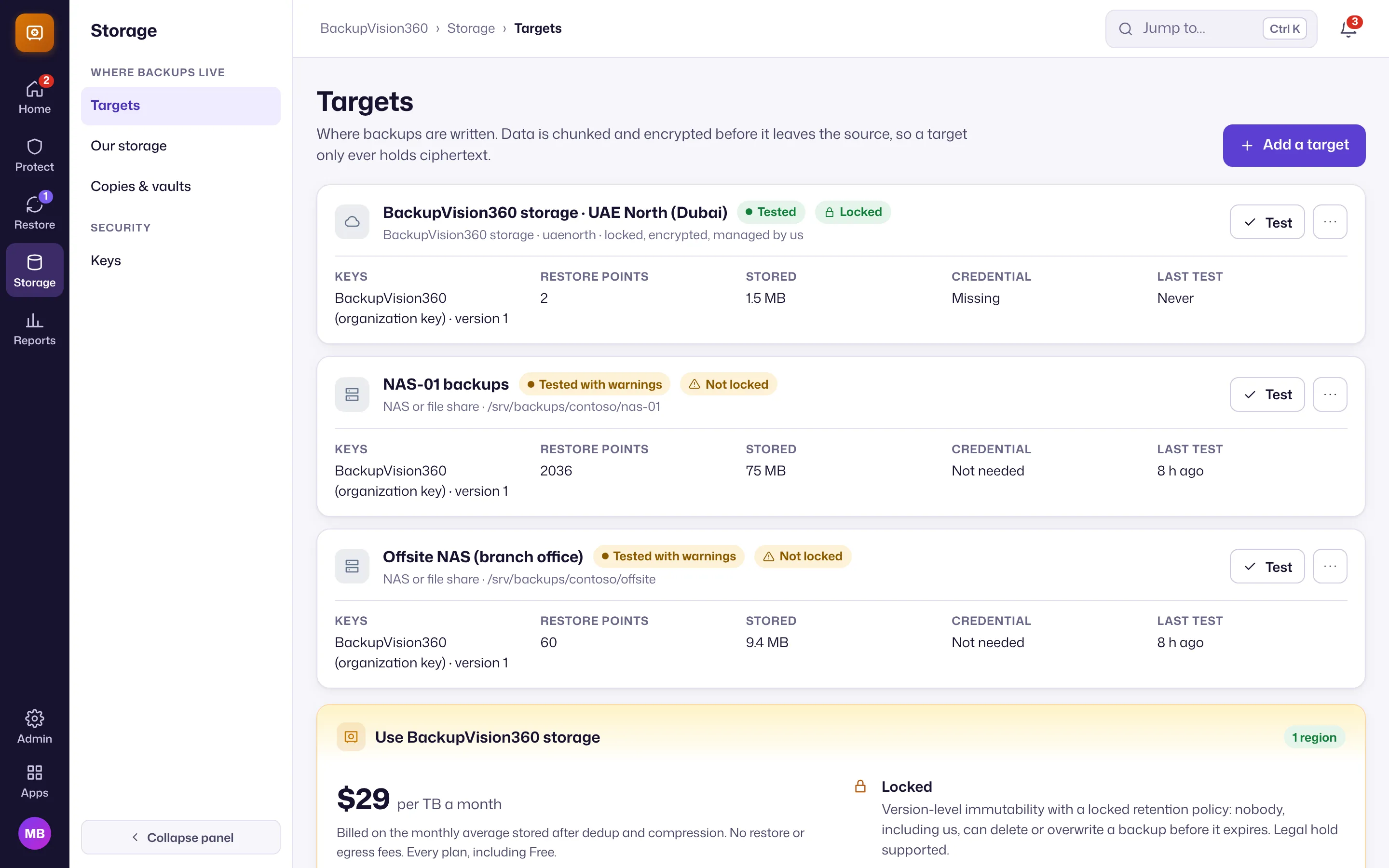
Open Storage → Targets. Either Add a target for storage you own (Azure Blob, Amazon S3 or S3-compatible, Google Cloud Storage, a NAS or file share), or use BackupVision360 storage: a dedicated, locked, encrypted location for your organization in the region nearest your data. The Free plan allows one target. See storage.
3. Connect Microsoft 365
Open Admin → Connections → Microsoft 365. A Global Administrator or Privileged Role Administrator grants consent and then signs in once more, so BackupVision360 can prove the tenant really is yours before it reads anything. See Microsoft 365 backup.
4. Protect and check
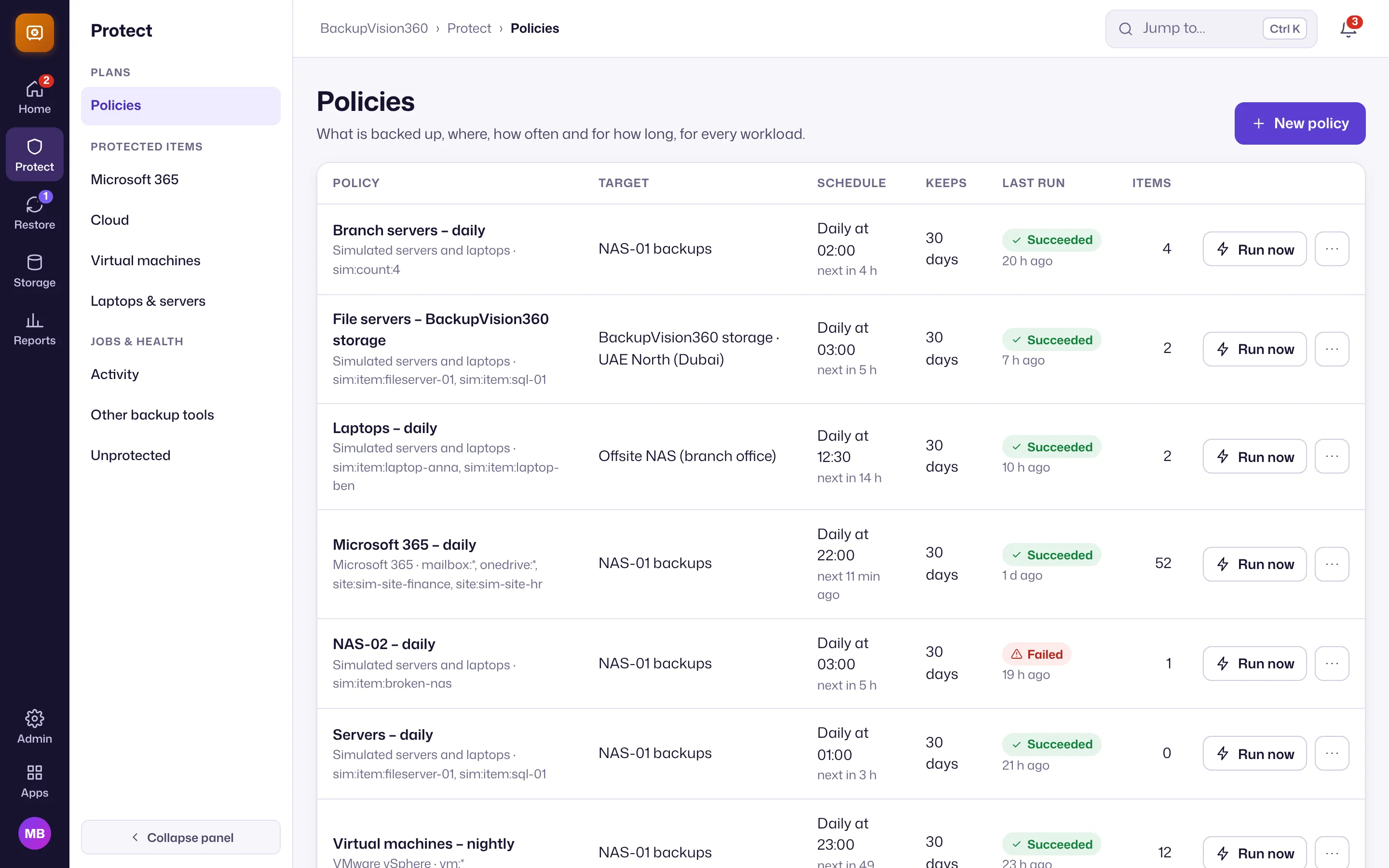
Open Protect → Microsoft 365, choose Protect…, pick people, shared mailboxes and sites (or everyone), the storage target, a schedule and how long to keep restore points. Policies for every workload are listed together under Protect → Policies, each with Run now. Every backup, copy and restore job appears under Protect → Activity.
Then set your approval rules
Under Admin → Settings → Restores & general, decide what happens when only one person in your organization can approve restores, and set your time zone for schedules. See restores and four-eyes approvals.
Already running Veeam? Add it under Protect → Other backup tools for free, whatever your plan: see monitoring other backup tools.