Everyone: sign in and find your apps
For everyone at your organization - accept your invitation, sign in through My Apps with your authenticator, switch between apps, change your password and get help when you're locked out.
Online version, always current: https://cloudvision360.com/docs/guides/everyone/
Your organization uses one sign-in for all its apps: My Apps at my.cloudvision360.com. You sign in once there and every app you’ve been given opens without signing in again.
Accept your invitation
-
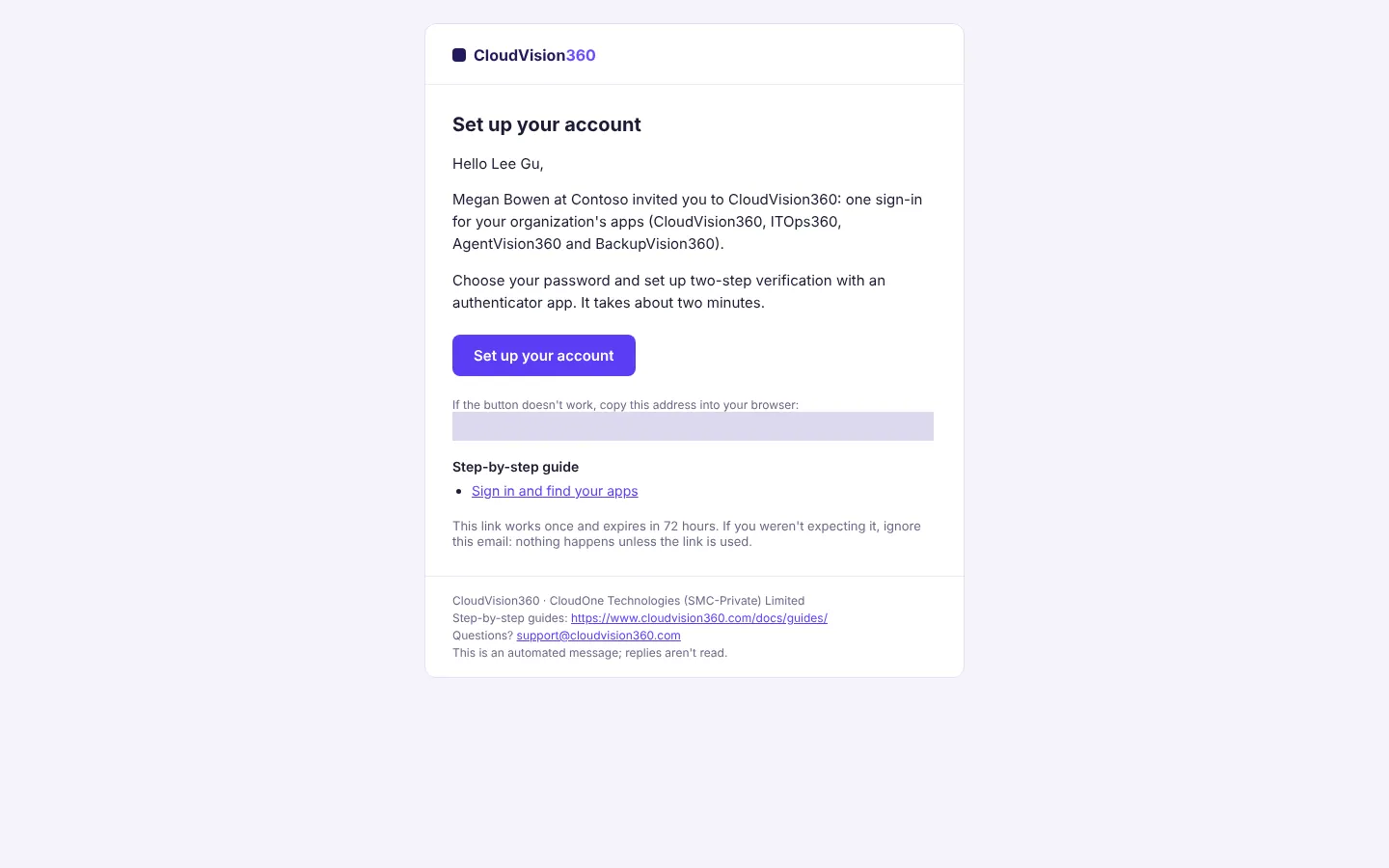
Open the email You’re invited to … on CloudVision360 and choose Set up your account. The link works once and expires after 72 hours. If it has expired, ask your administrator to resend it.
-
Choose a password (at least 12 characters), set up two-step verification with an authenticator app on your phone, and accept the terms. Each step is shown in Set up your account.
If your organization signs in with Microsoft, Google or Okta, the page shows Sign in with that provider instead: use your usual work sign-in, no new password needed.
Sign in
-
Go to
my.cloudvision360.com(or open any app: it sends you there). Enter your Work email and Password and choose Continue.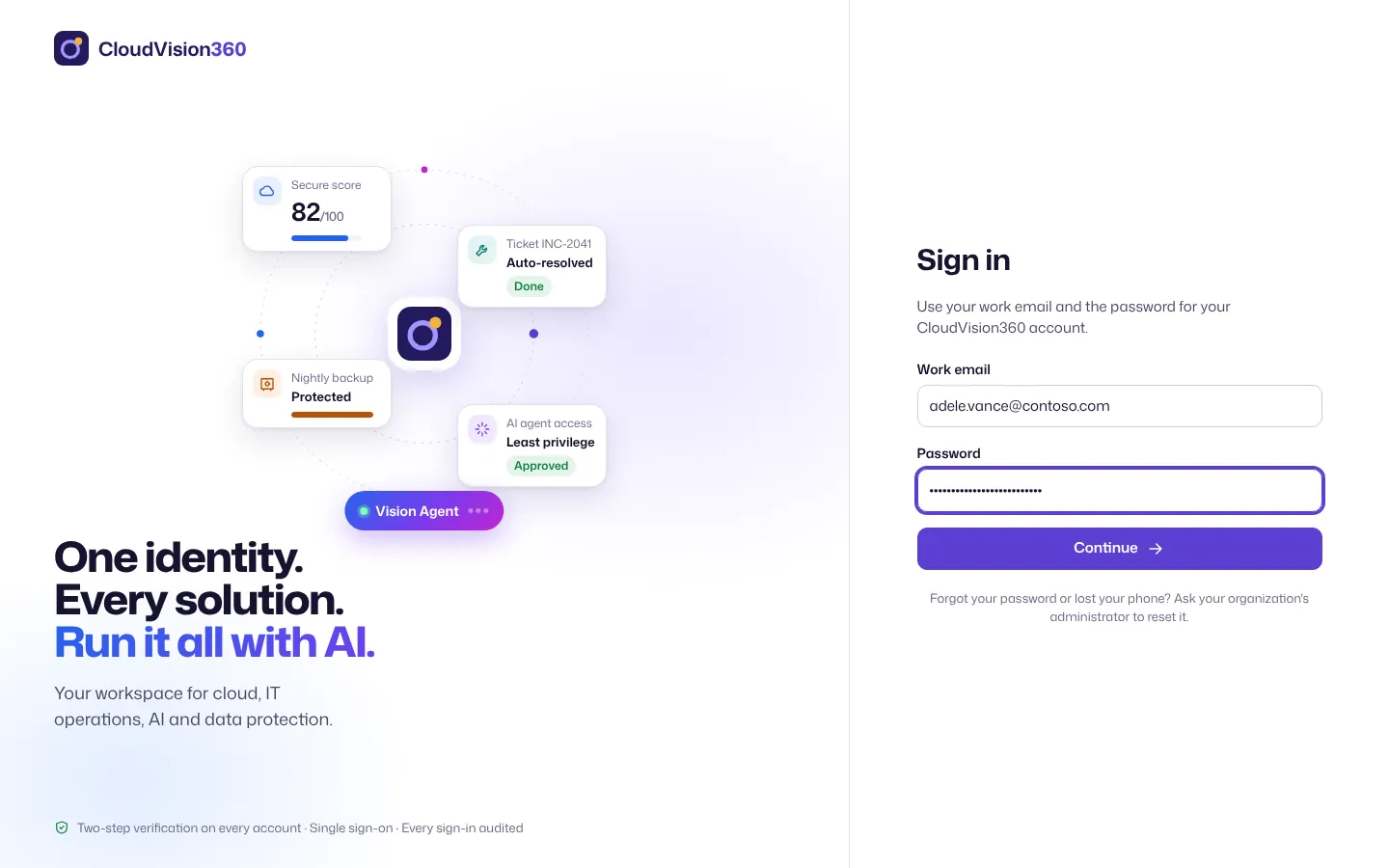
-
Open your authenticator app, enter the 6-digit code shown for CloudVision360 and choose Verify and sign in. Codes change every 30 seconds; if one is refused, wait for the next.
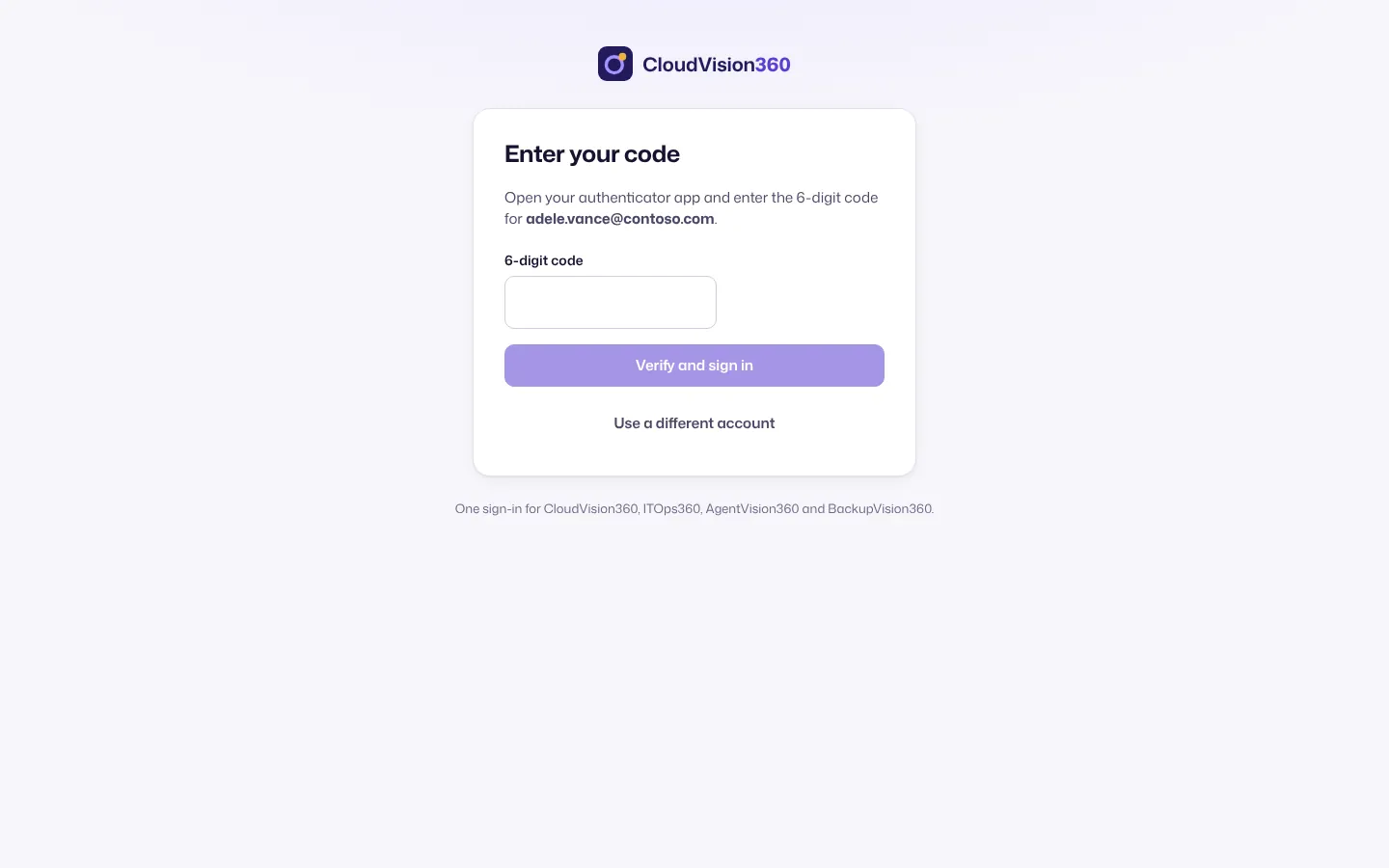
If your organization uses company sign-in, the page sends you to your identity provider after you enter your email.
Open an app
My Apps shows the apps you’ve been given, with your role in each. Choose a card to open the app. Use the star to keep your favorites first.
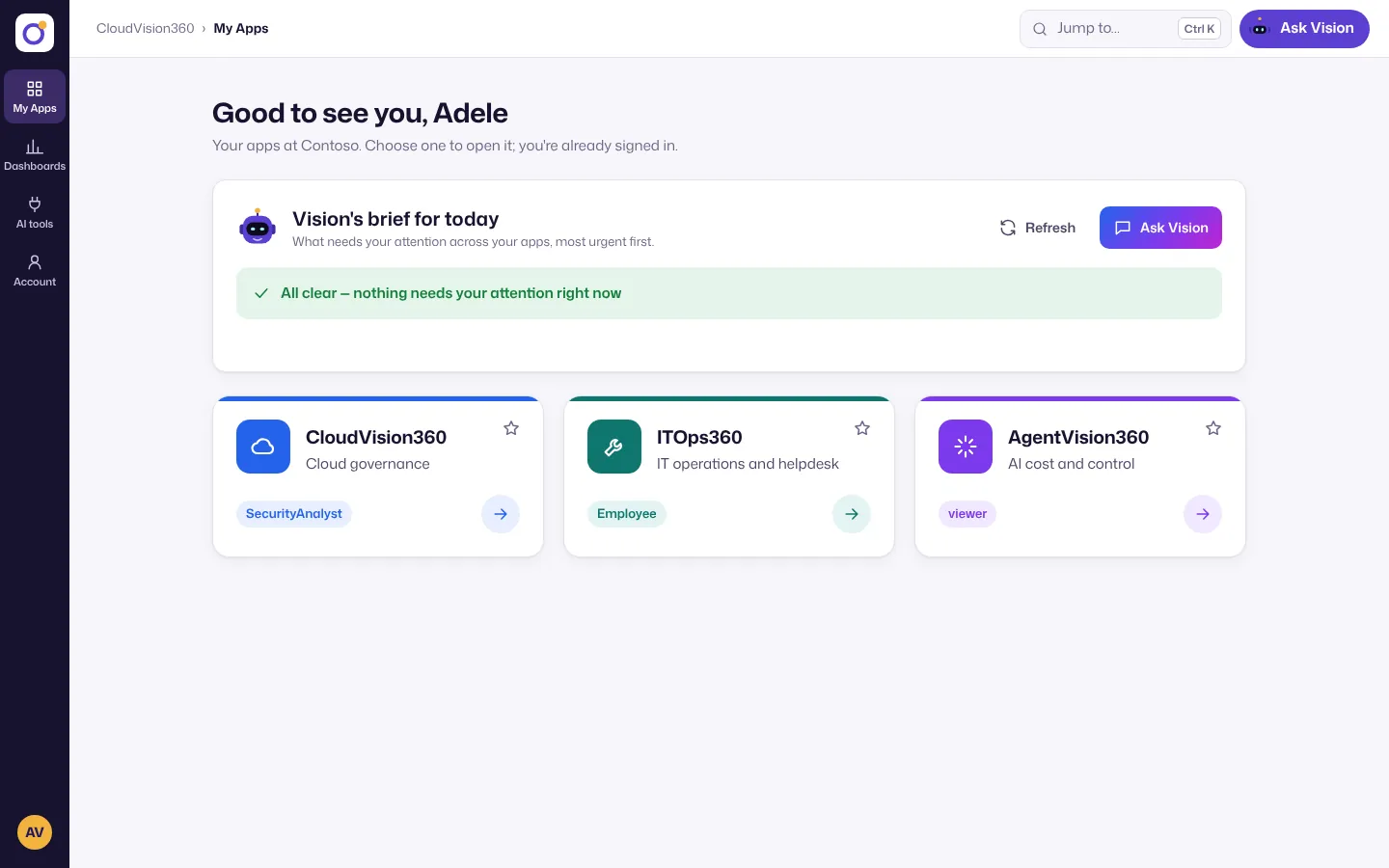
Vision’s brief for today at the top lists what needs your attention across your apps; Ask Vision answers questions about them in plain language.
Don’t see an app you need? Ask your administrator to give you access on the People page. It appears the next time you open My Apps.
Switch between apps
In any app, choose Apps at the bottom of the left rail. The menu lists the apps you’ve opened and My Apps; choose All apps to see them all. You stay signed in.
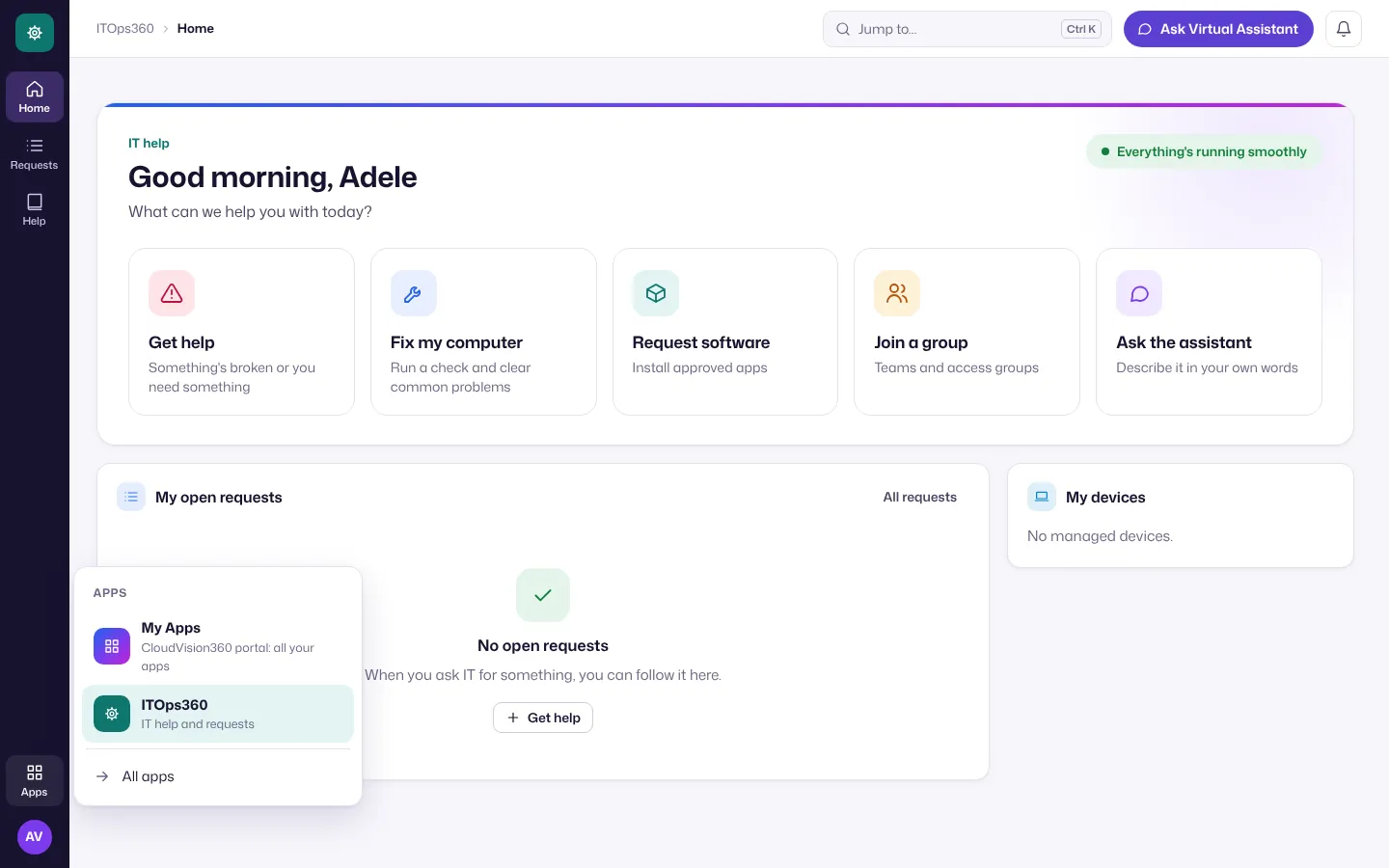
Every app shares the same layout: hubs in the left rail, pages in the section panel, and Jump to (Ctrl+K, or Cmd+K on a Mac) to go anywhere by typing. See Find your way around.
Change your password or sign out
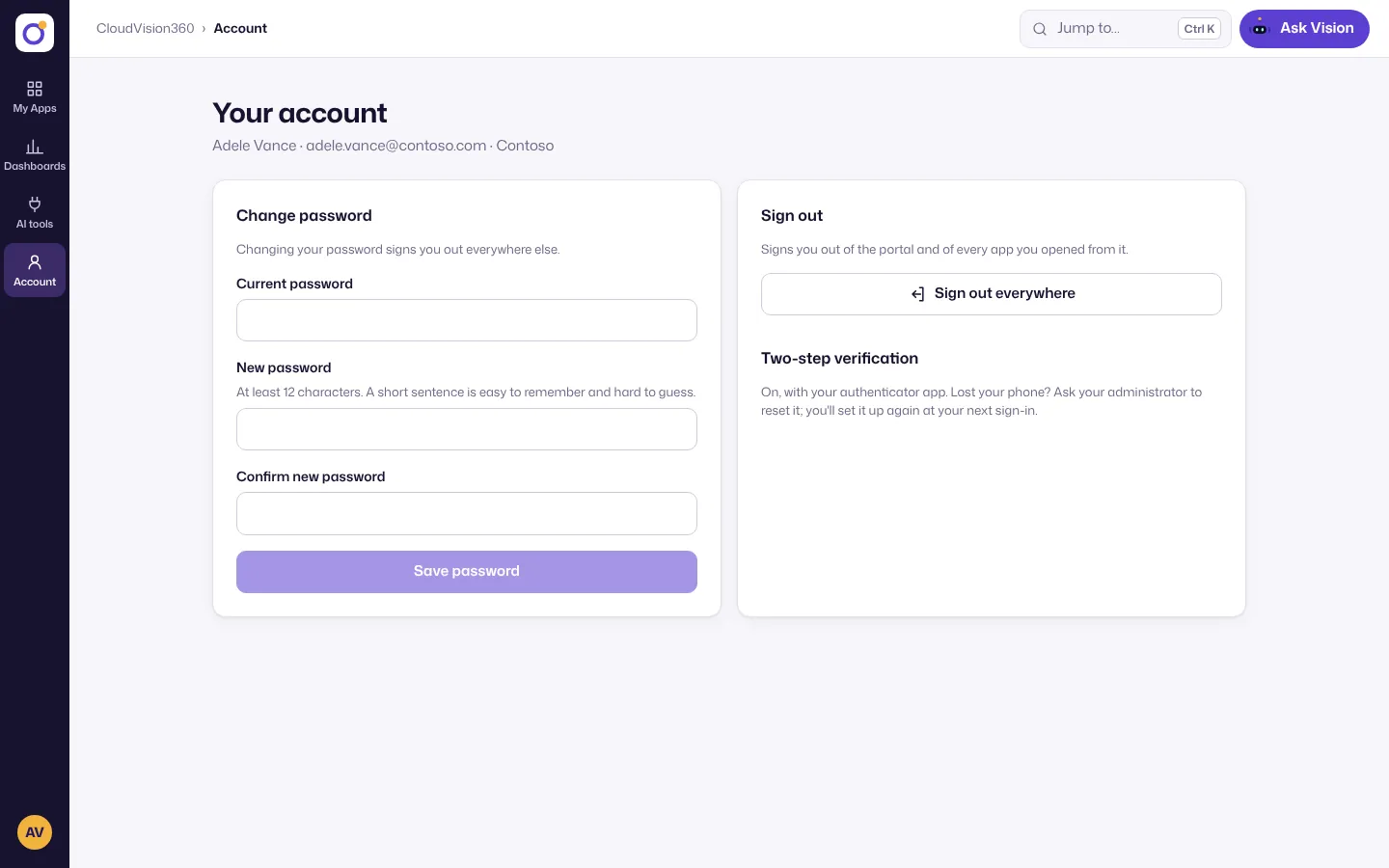
Open Account in the left rail of My Apps.
- Change password: enter your current password and the new one twice, then choose Save password. You’re signed out everywhere else.
- Sign out everywhere signs you out of My Apps and every app you opened from it, on this device.
Forgot your password or lost your phone?
You can’t reset these yourself; that keeps a stolen mailbox from becoming a stolen account. Ask your organization’s administrator:
- Forgotten password: they give you a one-time password; you choose a new one when you sign in.
- New or lost phone: they reset your authenticator; you set it up again at your next sign-in.
If you sign in with Microsoft, Google or Okta, reset your password there as usual.