Set up ITOps360
The four Get started steps - connect Microsoft Entra ID and Intune (or Active Directory), add devices with the agent or a site collector, set up the service catalog and invite technicians.
Online version, always current: https://cloudvision360.com/docs/guides/set-up-itops360/
ITOps360 is your service desk, device management and IT automation in one place. A new organization opens on a Get started card with four steps, each ticked off from real data. You need the CustomerAdmin or ItManager role. Each step’s How to link opens its section of this guide.
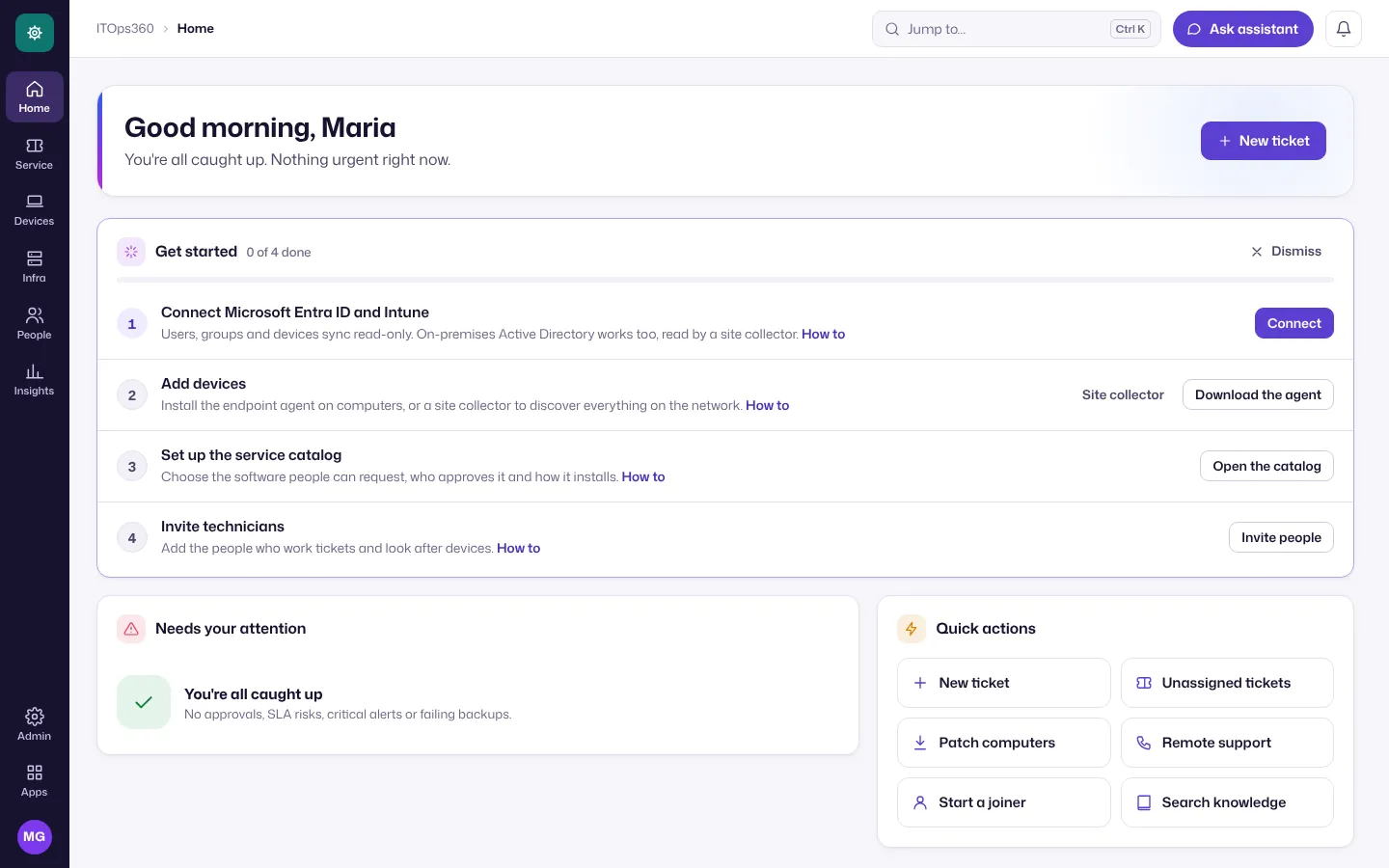
Connect Microsoft Entra ID and Intune
Users, groups and devices sync read-only from Microsoft Graph. Remote actions (wipe, restart, install) need a second, write-scoped app registration that you add later, only if you want them.
-
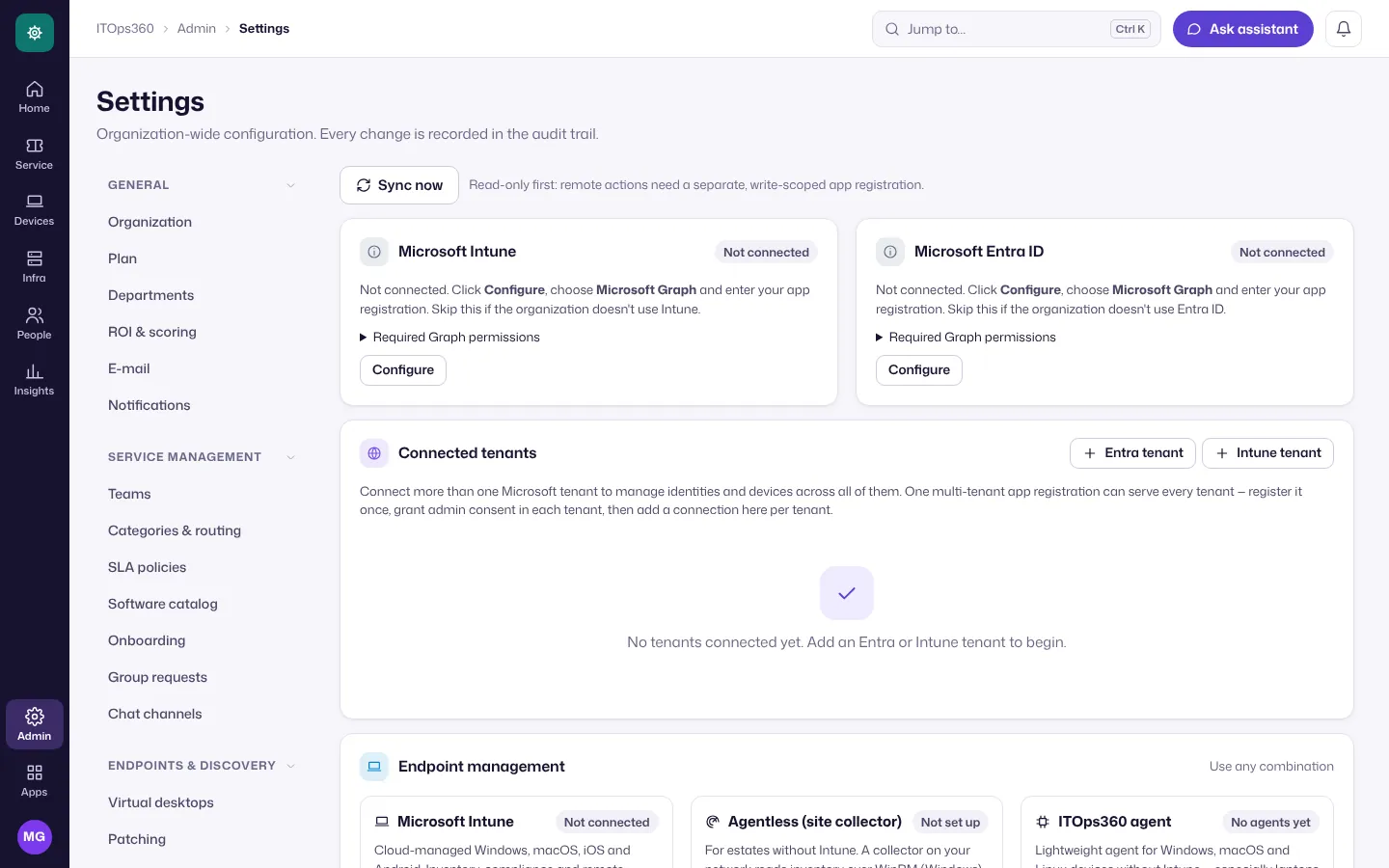
On the Get started card choose Connect (or Admin → Settings → Integrations).
-
In Microsoft Entra ID, create an app registration and grant it the Graph application permissions listed under Required Graph permissions on each card, then grant admin consent.
-
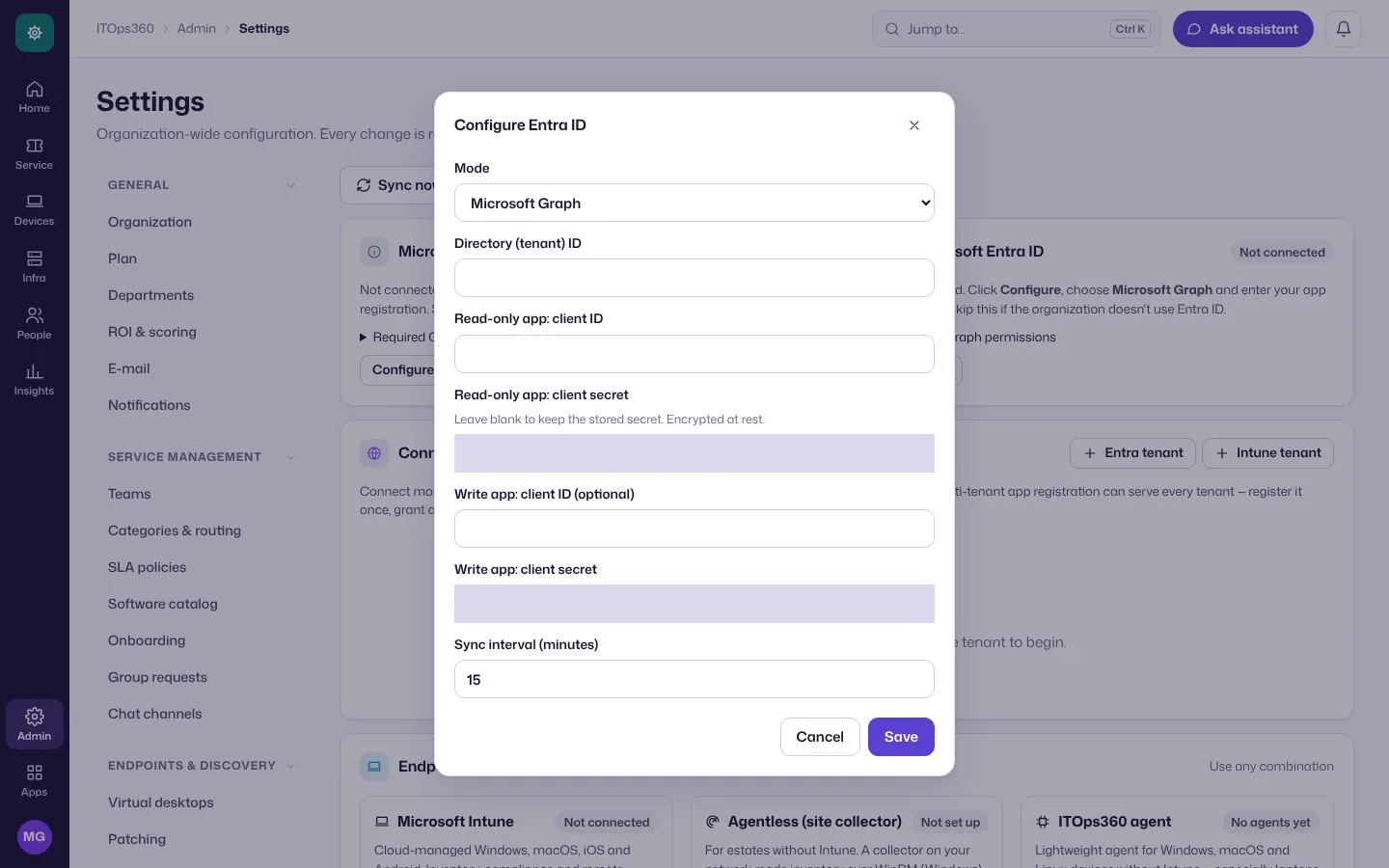
On the Microsoft Entra ID card choose Configure. Keep Mode on Microsoft Graph, enter the Directory (tenant) ID, the Read-only app client ID and its client secret, and choose Save. Do the same on the Microsoft Intune card if you use Intune (the same app registration can serve both).
-
Choose Sync now. People, groups and devices appear within minutes, then sync on the interval you set.
Several Microsoft tenants? Add each one under Connected tenants (Entra tenant, Intune tenant). On-premises Active Directory is read by a site collector instead (next step). Details: Connect identity and devices and Active Directory and Entra ID.
Add devices
Devices managed by Intune arrive with the Intune connection. For the rest, use one or both of these:
The ITOps360 agent (Windows, macOS and Linux laptops and servers, especially those that leave the office):
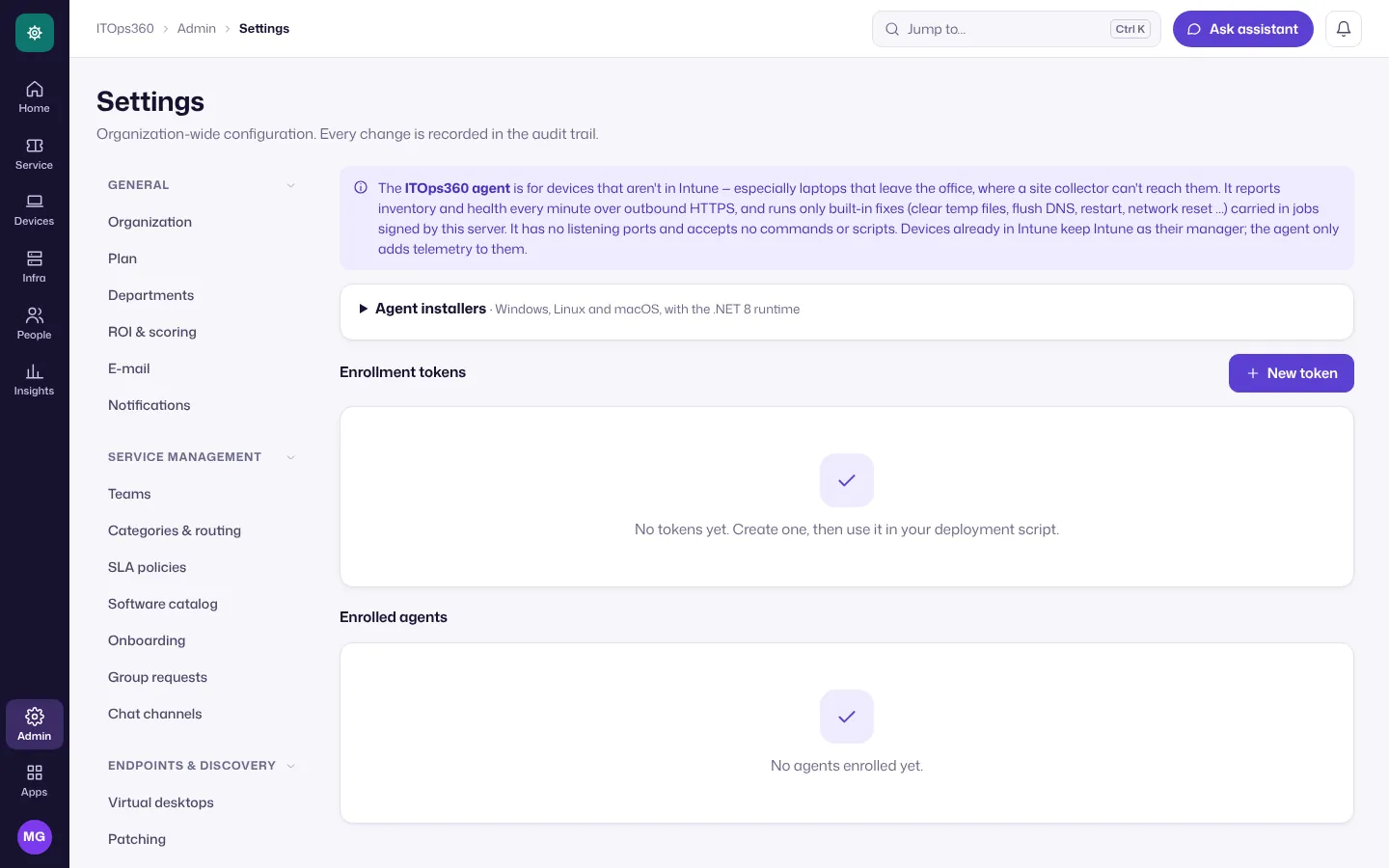
- Choose Download the agent on the card (or Admin → Settings → Endpoint agents).
- Choose New token under Enrollment tokens. Copy it now: it’s shown once.
- Download the installer for each platform under Agent installers and deploy it with the token (by hand, Group Policy, Intune or your RMM). Devices appear under Enrolled agents and in Devices.
A site collector (agentless: discovers everything on a network, including printers, switches and on-premises Active Directory):
- Choose Site collector on the card (or Admin → Settings → Discovery), then Add collector.
- Install it on a Windows Server 2016+ or Linux machine at the site, using Collector installers and Setup scripts.
- Under Credentials, add the read-only accounts it should use (WinRM, SSH, SNMP, LDAP). They’re encrypted with the collector’s own key: ITOps360 can’t read them.
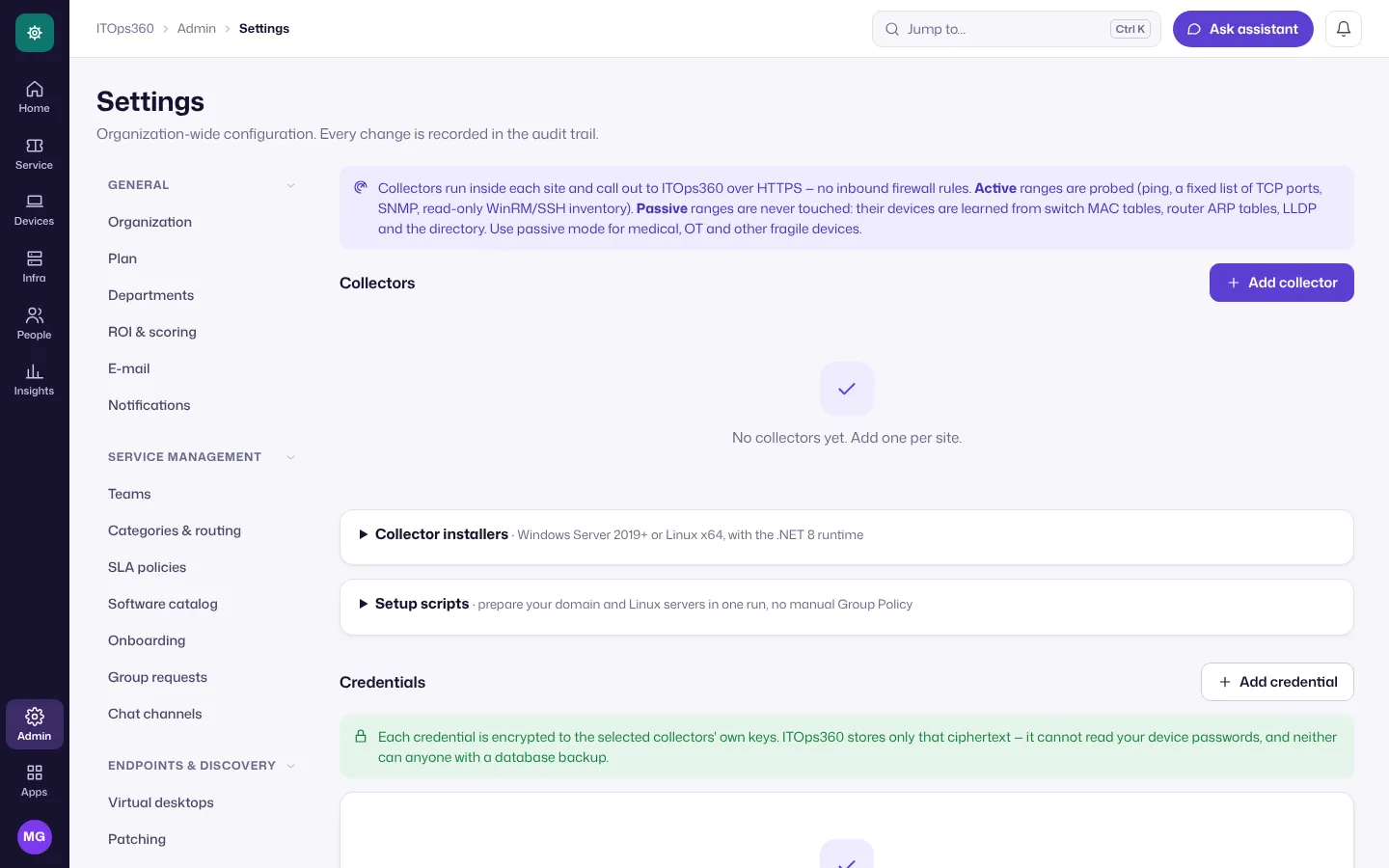
More in Agent and agentless and Discovery and assets.
Set up the service catalog
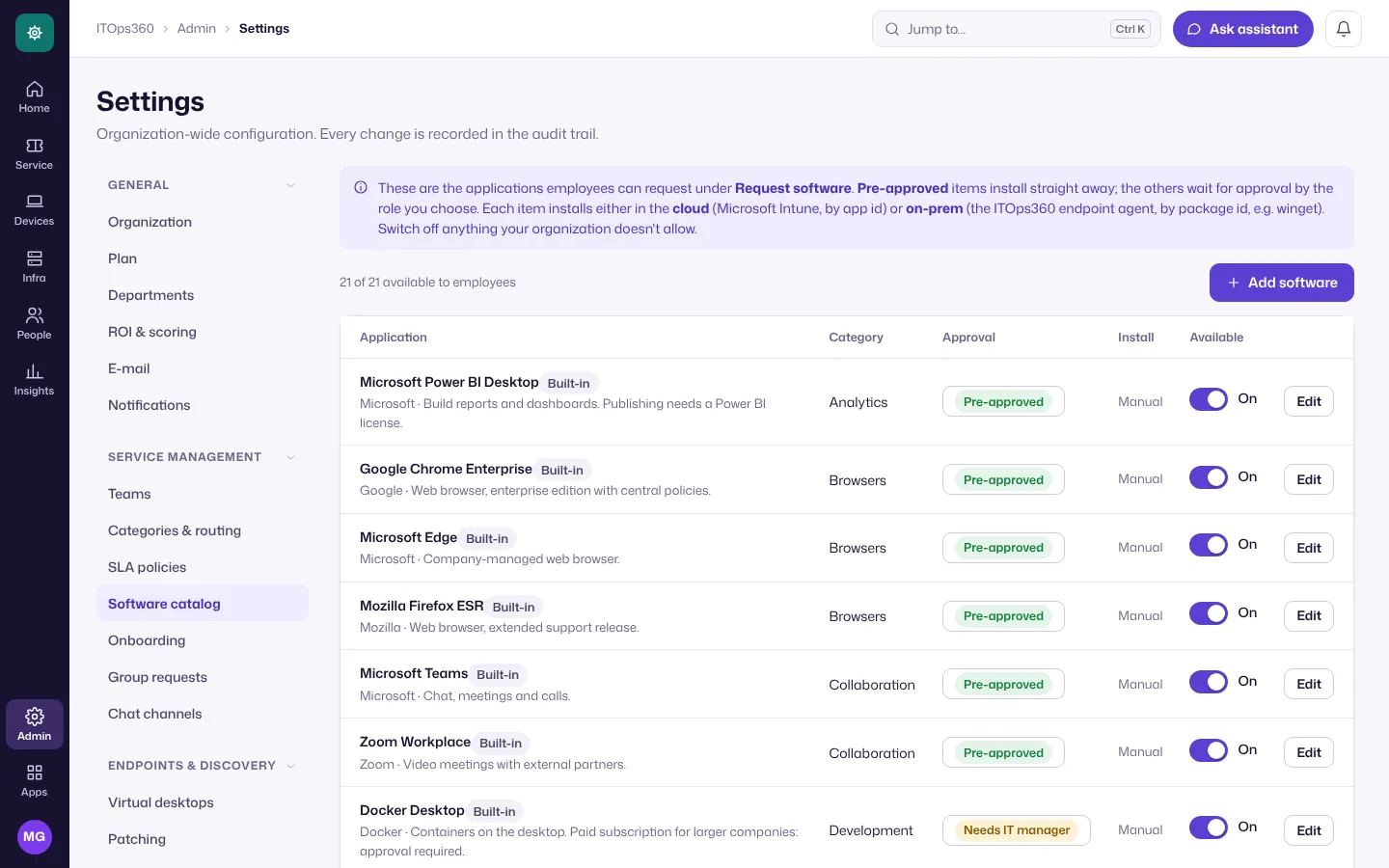
The catalog is the software employees can request under Request software. It starts with common built-in items; the step is done when you add or change one.
-
Choose Open the catalog (or Admin → Settings → Software catalog).
-
For each item, choose Edit to set who approves it (Pre-approved items install straight away), how it installs and whether it’s Available to employees. Switch off anything your organization doesn’t allow.
-
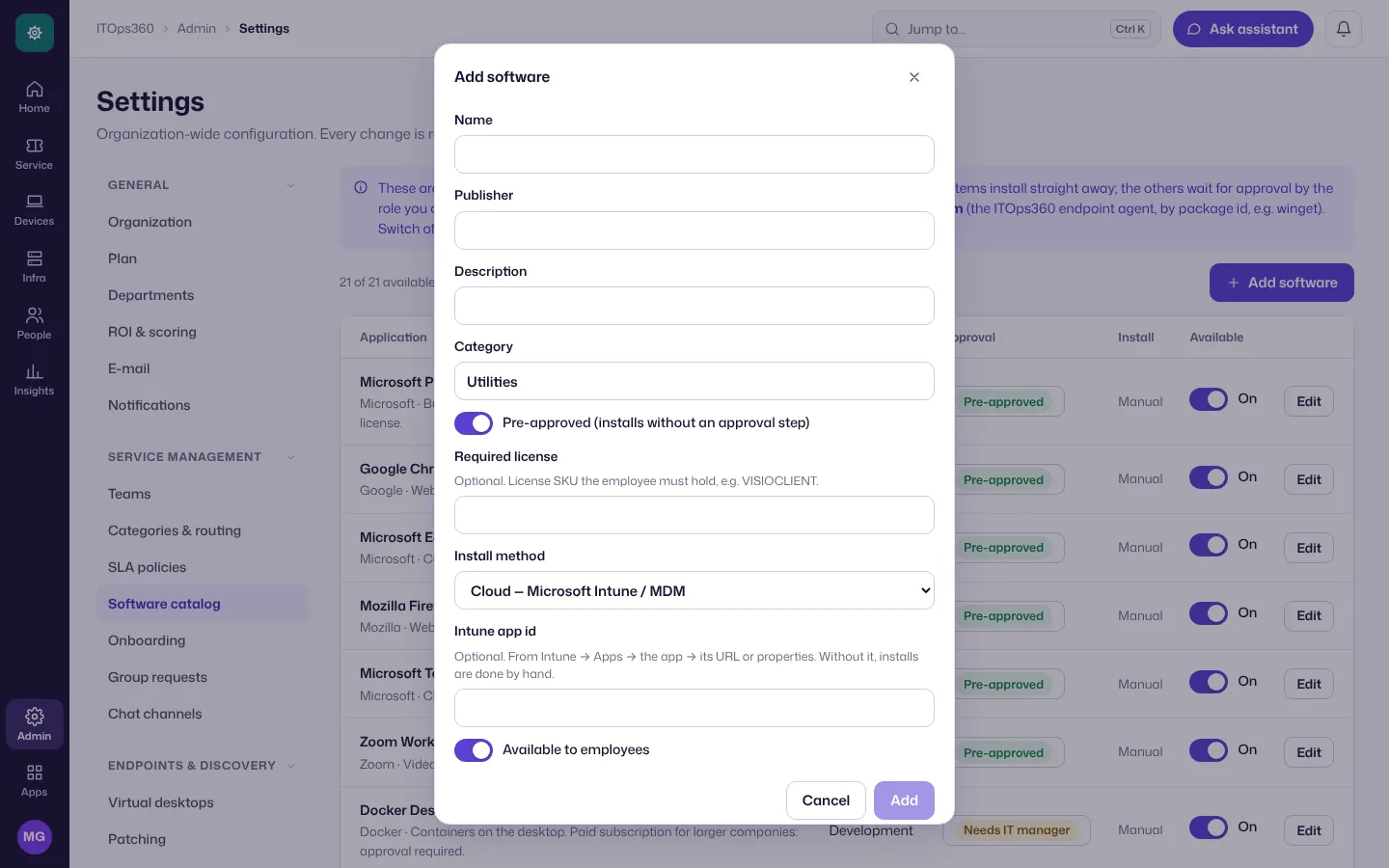
To add your own, choose Add software: name, publisher, category, whether it’s pre-approved or needs a role’s approval, and the install method (Intune app id in the cloud, or a package id such as winget for the ITOps360 agent).
Request forms beyond software are in Employee portal and catalog.
Invite technicians
Technicians are the people who work tickets and look after devices. You invite them in My Apps, like everyone else:
-
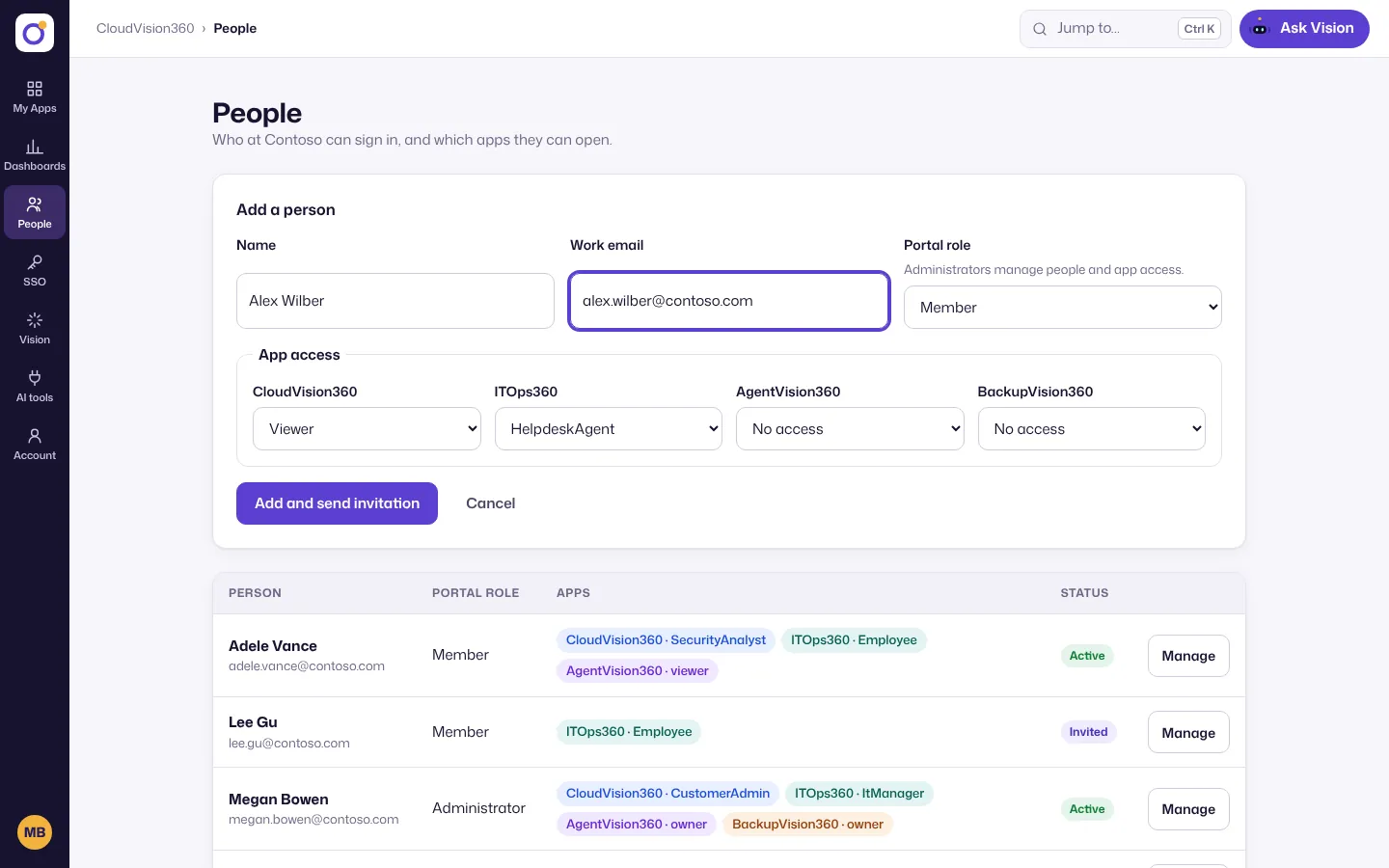
Choose Invite people on the card. It opens People in My Apps.
-
Add person, and under App access give them an ITOps360 role such as HelpdeskAgent, EndpointAdmin or ItManager. Everyone else gets Employee, which can raise and follow requests.
-
They appear in ITOps360 after their first sign-in; the step ticks off then. Technician roles use seats on your plan.
The full walk-through is in Invite your team. Day-to-day use is in Use ITOps360.