Connect Microsoft Azure
Grant CloudVision360 a least-privileged reader role across your Azure subscriptions and management groups.
Online version, always current: https://cloudvision360.com/docs/platform/connect-azure/
CloudVision360 reads Azure configuration, identity and cost data through a read-only role. This covers Resource Graph, Advisor, Microsoft Defender for Cloud, Cost Management and Monitor.
What access is requested
A least-privileged reader at the scope you choose — a subscription, several subscriptions, or a management group so new subscriptions are covered as they appear. Remediation, if you turn it on later, uses a separate write identity you grant explicitly.
Connect with Terraform (recommended)
- In CloudVision360, open Inventory → Cloud connections, choose Connect a cloud, then Microsoft Azure.
- Download the Terraform module shown. It declares exactly which role assignments are requested and why — review it before you apply.
- Run
terraform applyagainst the subscription or management group you want covered. - Paste the resulting application (client) ID, tenant ID and the directory scope back into the connection form.
Connect manually
If you prefer the portal, create an app registration, assign it the Reader role (plus Cost Management Reader) at the chosen scope, and supply its credentials. The connection form lists each role it expects.
Auto-discovery
Connect at a management group and CloudVision360 discovers and assesses new subscriptions automatically as they are created, so your inventory never drifts behind your estate.
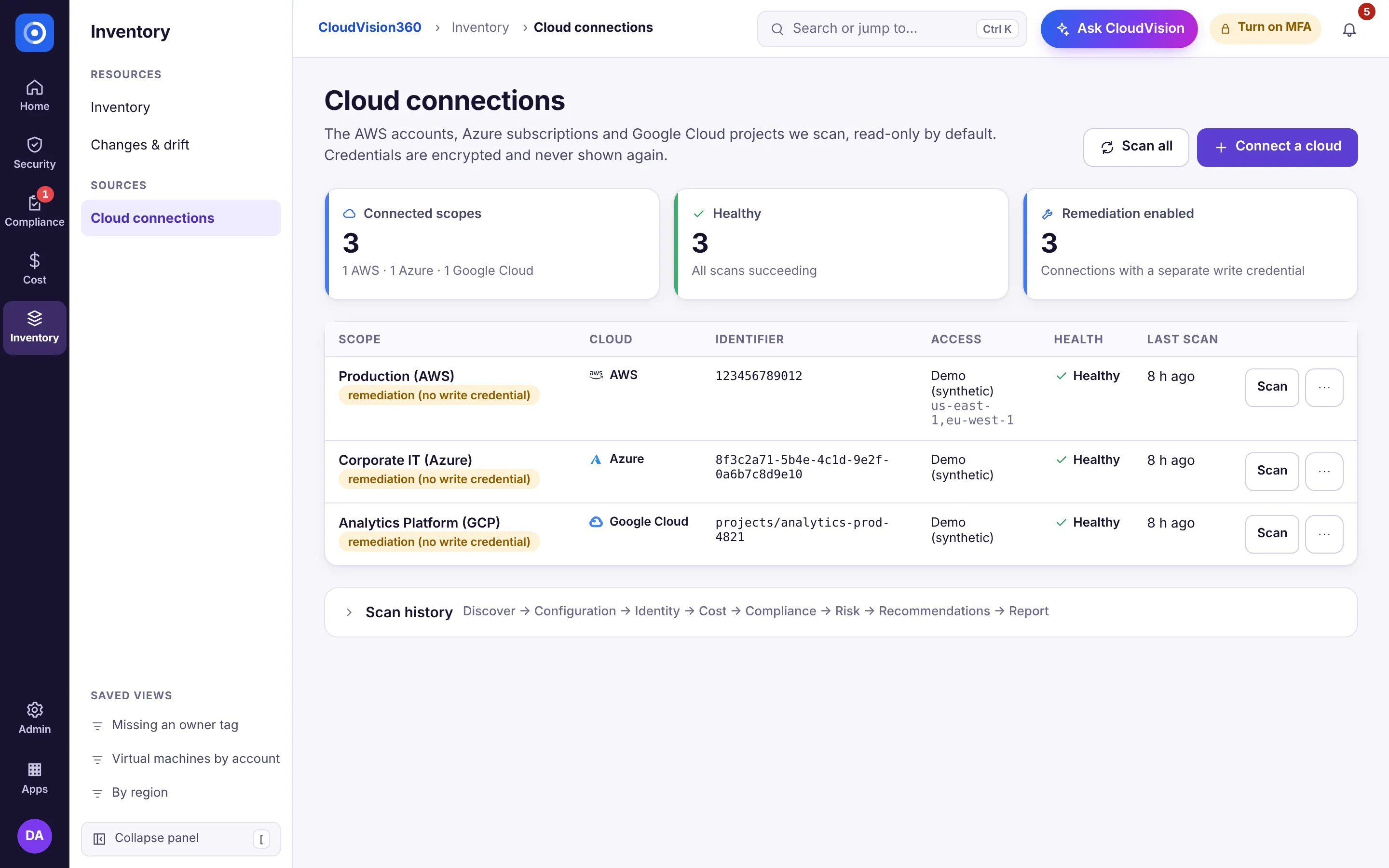
Verify
Once saved, the first assessment runs within minutes. If a permission is missing, the connection’s health panel names it. See also connect AWS and connect Google Cloud.