Use ITOps360
Everyday ITOps360 - for employees, get help, follow your requests and request software; for technicians, work the ticket queue.
Online version, always current: https://cloudvision360.com/docs/guides/use-itops360/
Employees see a simple IT help portal; technicians see the full service desk. Both open ITOps360 from My Apps.
For employees: the IT help portal
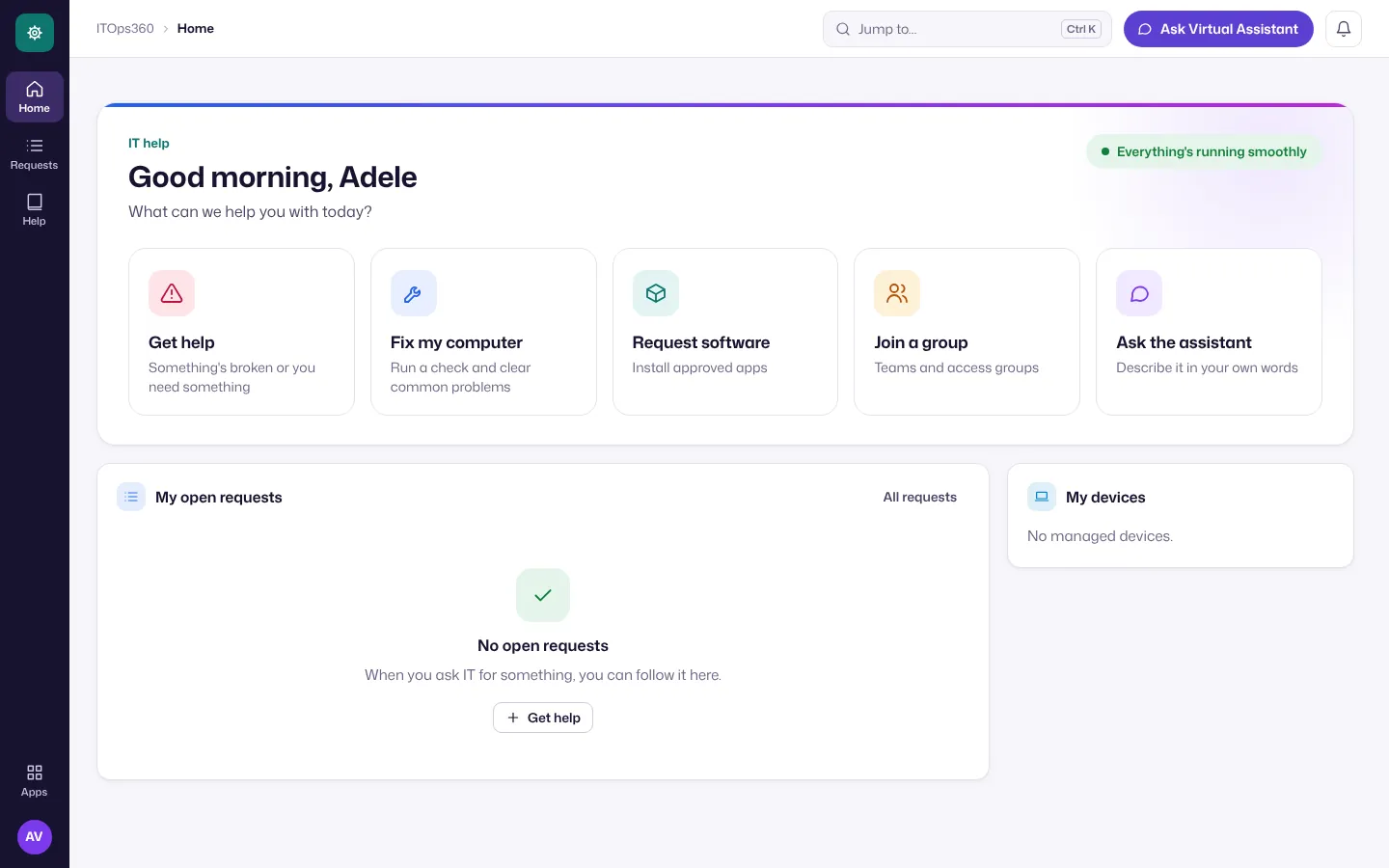
Home has tiles for everything you can ask IT for: Get help, Fix my computer, Request software, Join a group and Ask the assistant, plus your open requests and your devices.
Raise a request
-
Choose Get help.
-
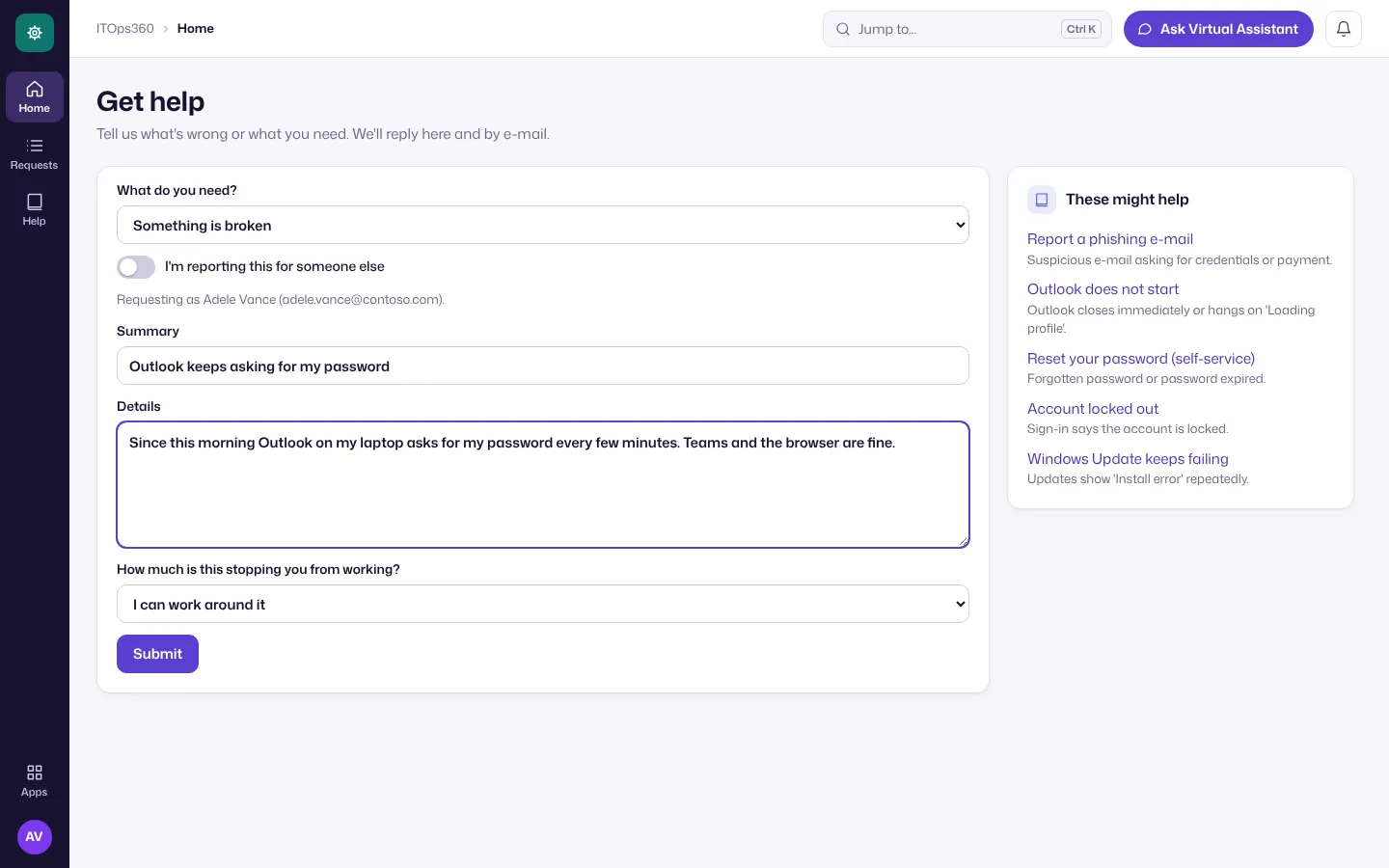
Pick What do you need?, write a short Summary and the Details (what happened, since when, what you tried), and say How much is this stopping you from working?. Turn on I’m reporting this for someone else to raise it on a colleague’s behalf.
-
While you type, These might help suggests help articles that may solve it straight away.
-
Choose Submit.
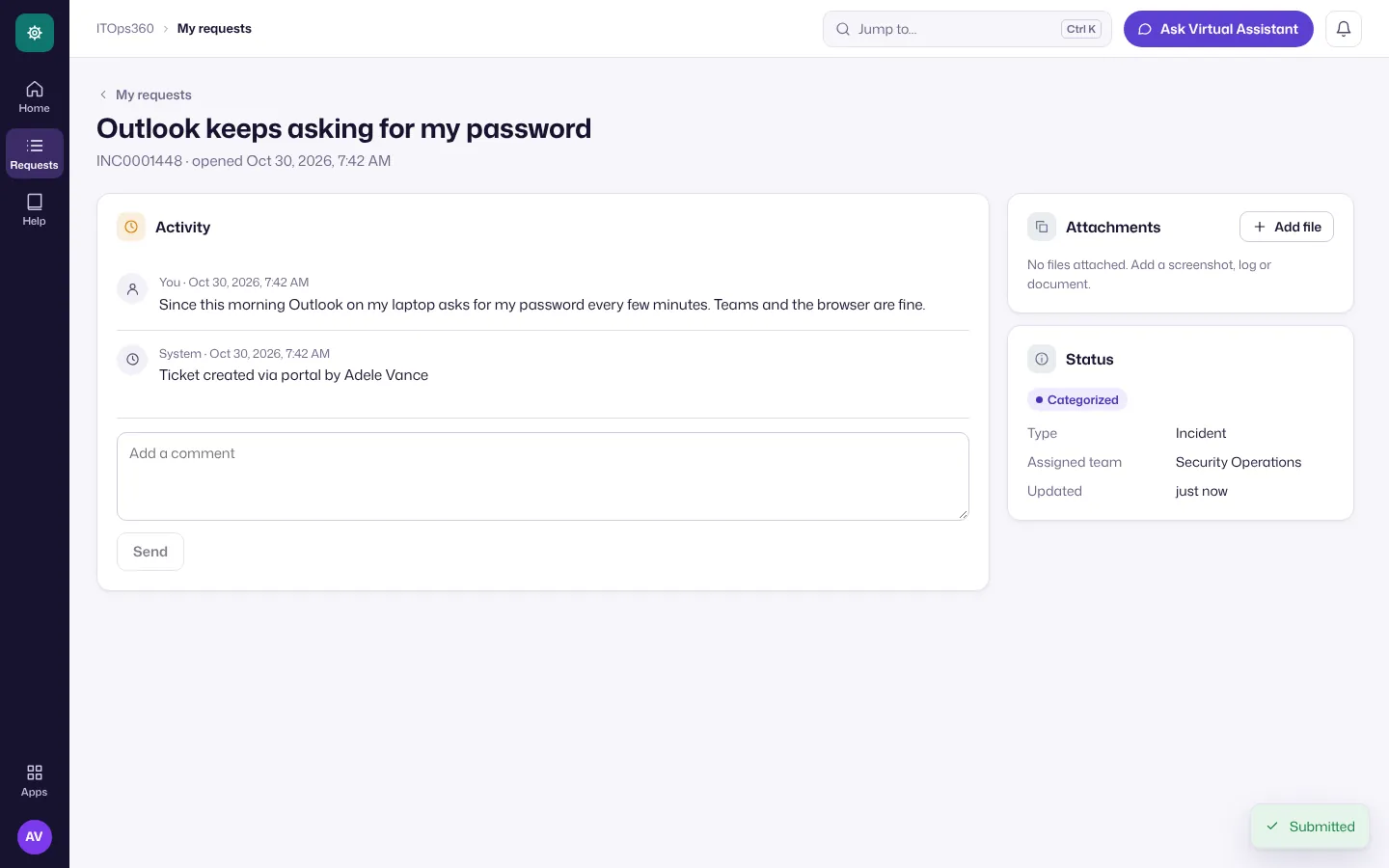
The request opens with its number (for example INC0001448).
Track your requests
-
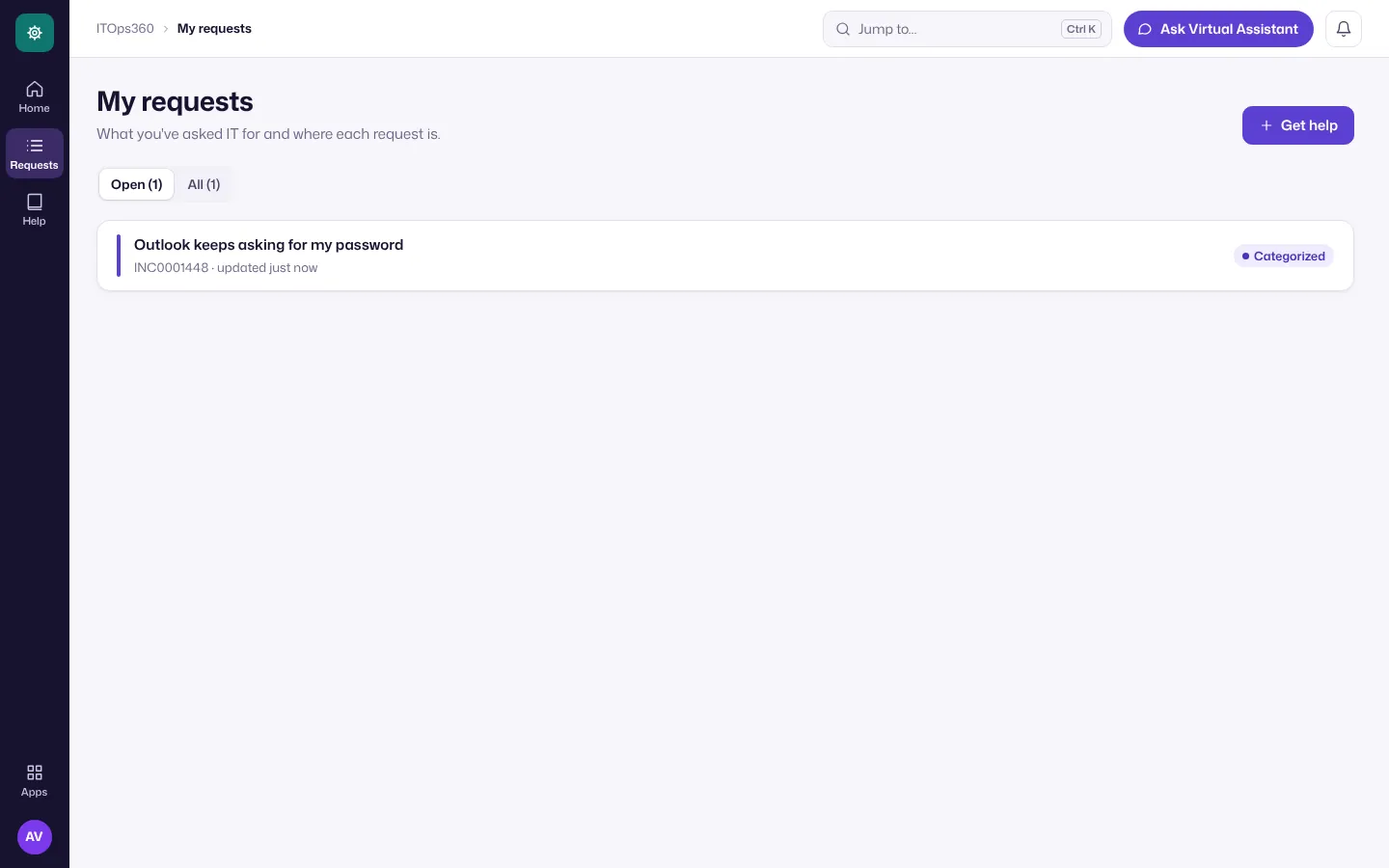
Choose Requests in the left rail (or All requests on Home). Open shows what’s still in progress; All includes closed ones.
-
Select a request to see its status, the team working on it and every update. Add a comment or Add file (a screenshot or log) to give IT more detail.
Request software
-
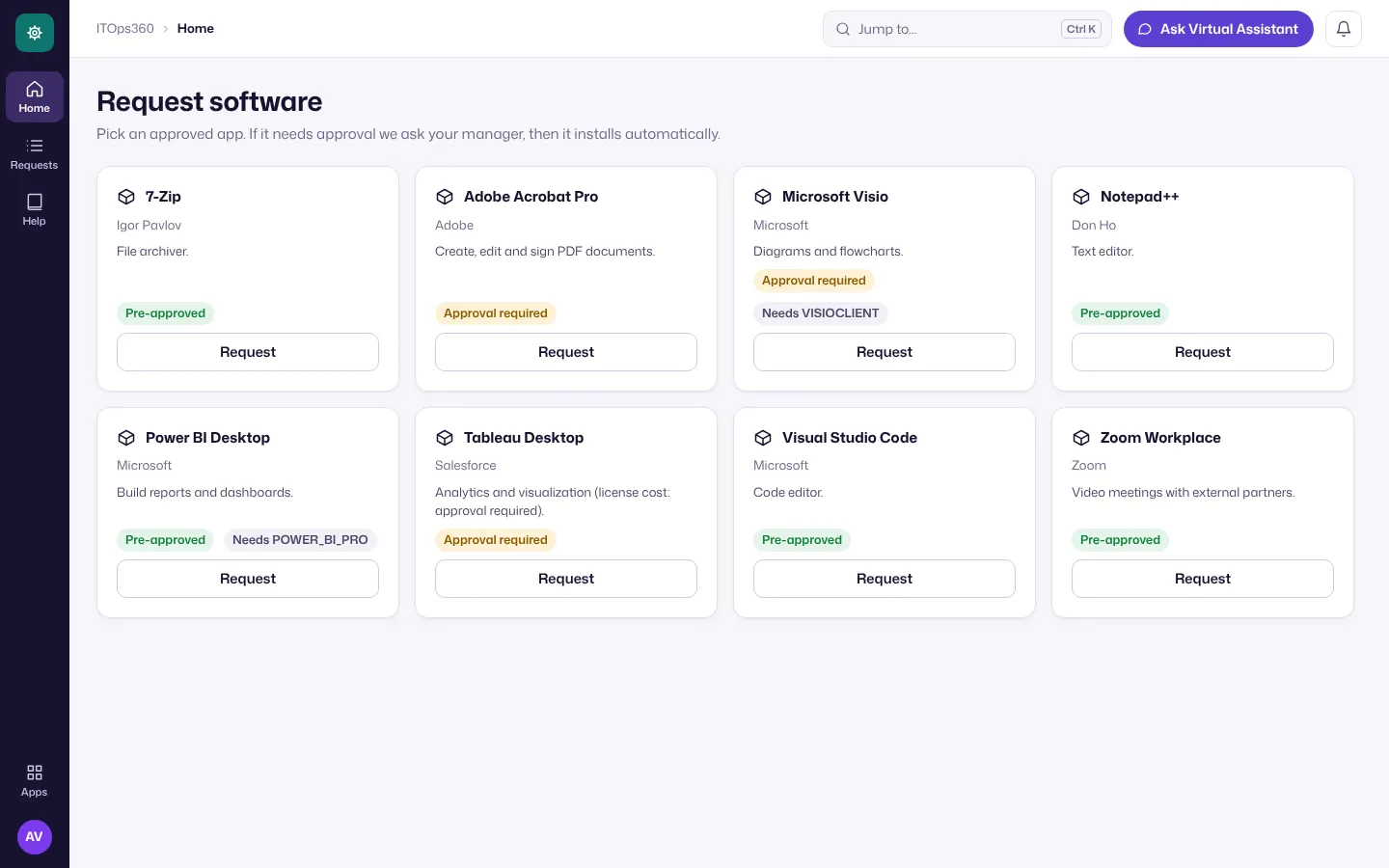
Choose Request software on Home.
-
Find the app. Pre-approved apps install straight away; others show Approval required, and your manager or the named role approves first.
-
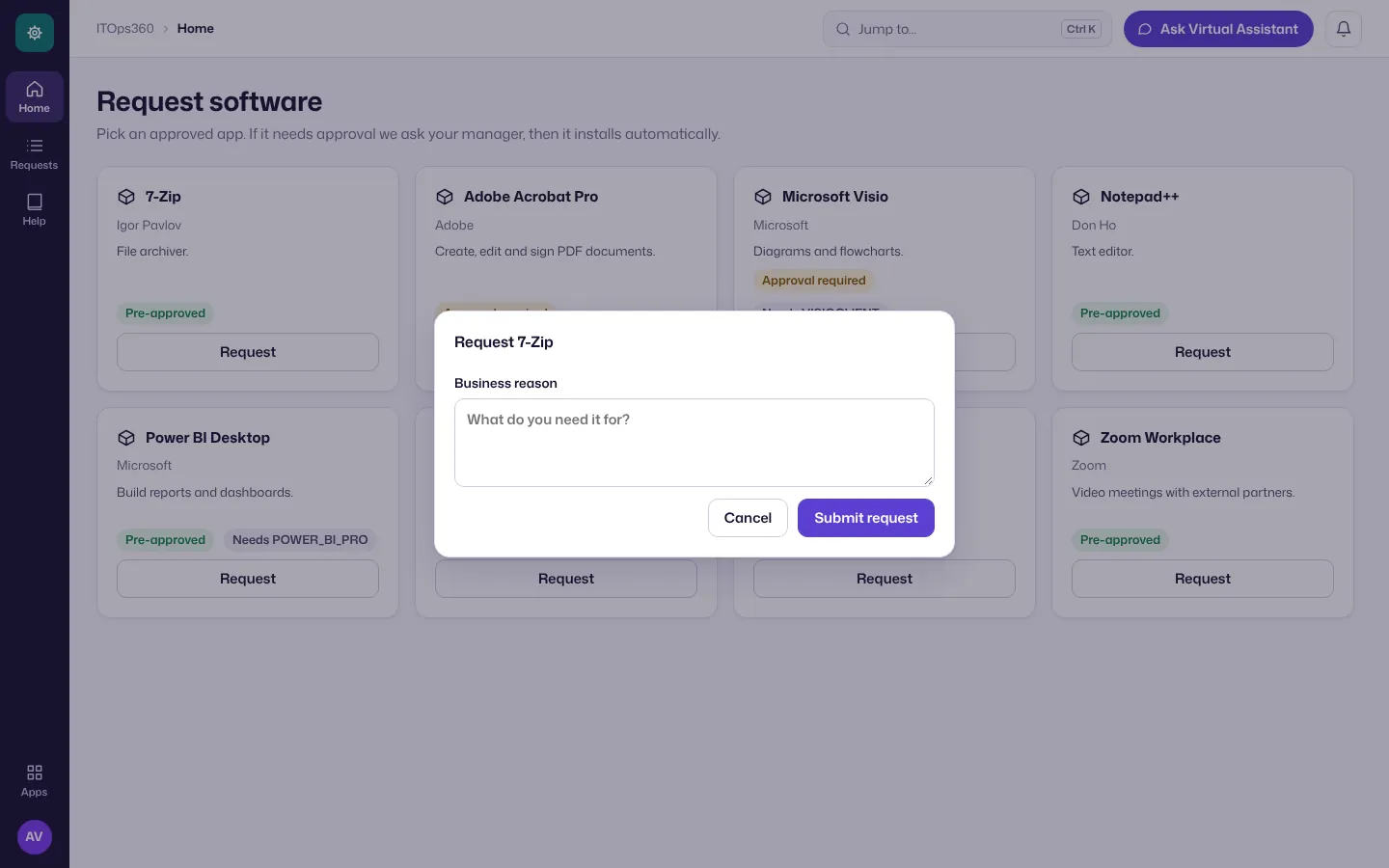
Choose Request, give a Business reason and choose Submit request. It installs automatically on your device once approved, and you can follow it under Requests.
For technicians: work the queue
-
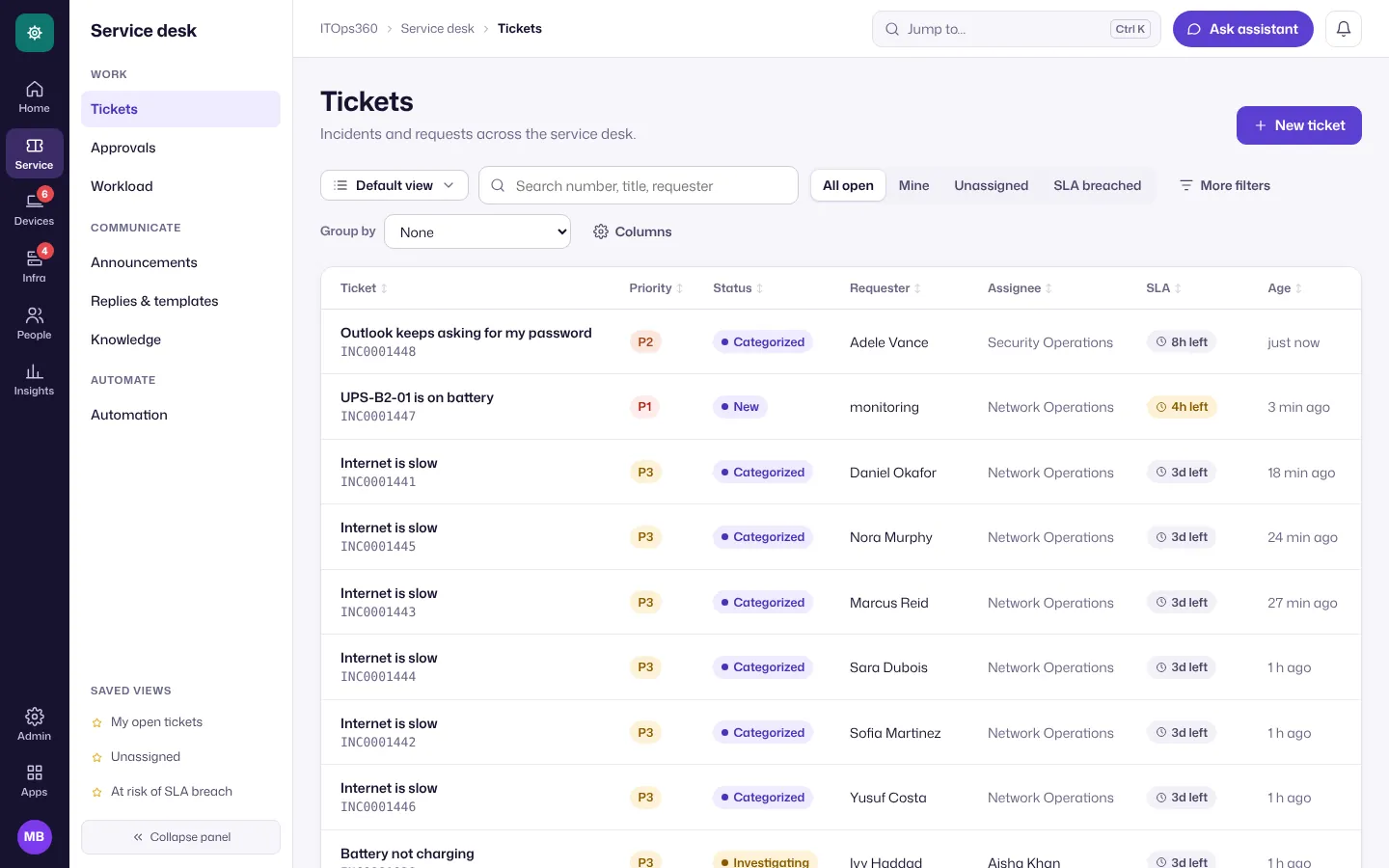
Open Service → Tickets. Use the scopes (All open, Mine, Unassigned, SLA breached) or a saved view in the panel; Group by and Sort change the layout.
-
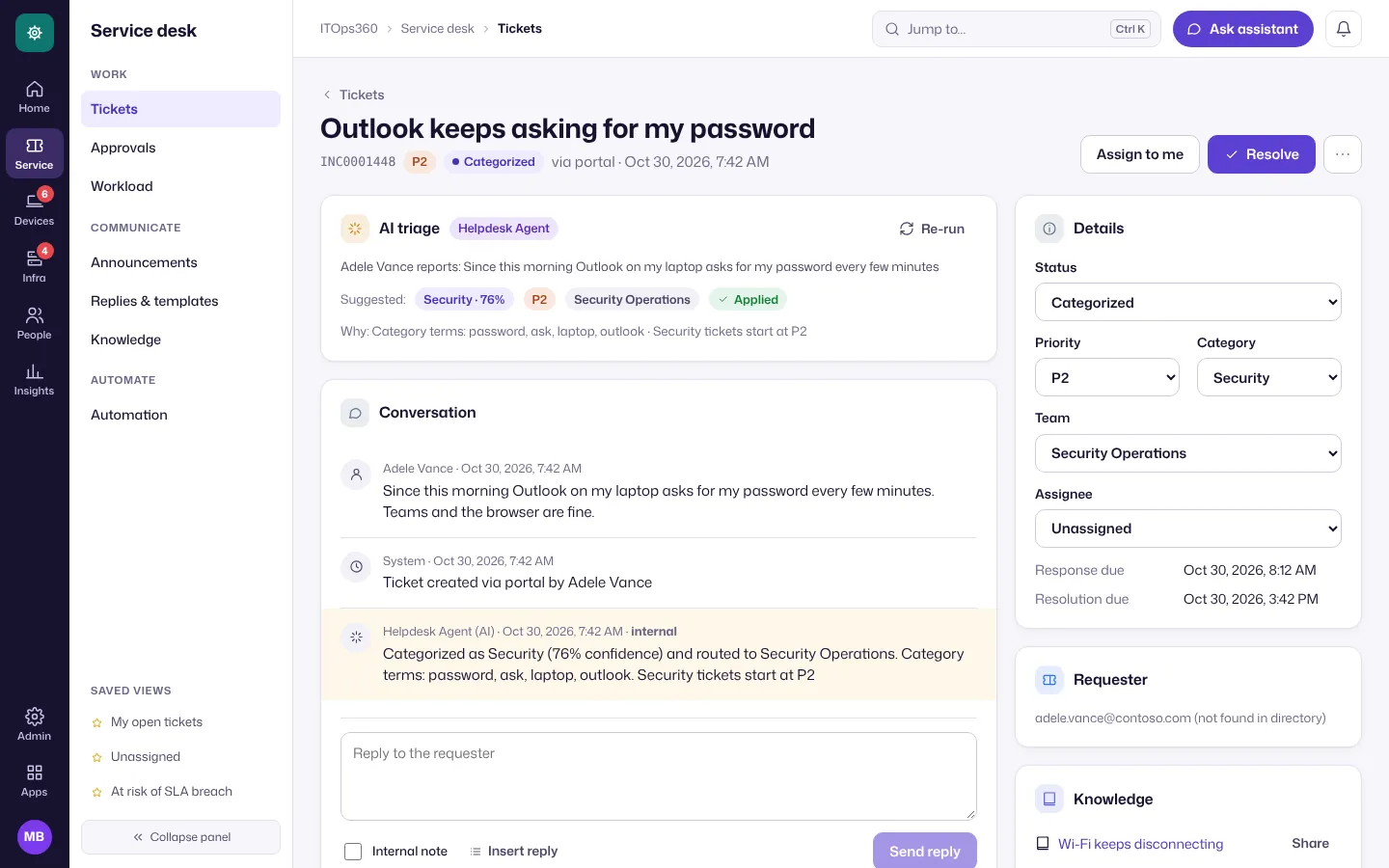
Open a ticket. AI triage suggests the category, priority and team; accept or change it. Set Status, Priority, Team and Assignee on the right, reply in Conversation, and use the linked Knowledge articles.
-
Choose Assign to me to take it, and Resolve when it’s fixed. The requester sees it resolved in their requests.
SLAs, routing, merging and replies are covered in Tickets and SLAs.