Use BackupVision360
Everyday BackupVision360 - check that backups ran, request a restore, approve someone else's restore as the second person, and read the compliance reports.
Online version, always current: https://cloudvision360.com/docs/guides/use-backupvision360/
Every restore needs two people: the one who asks and a second person who approves. That’s what stops a stolen account from quietly downloading or overwriting your data.
Check your backups
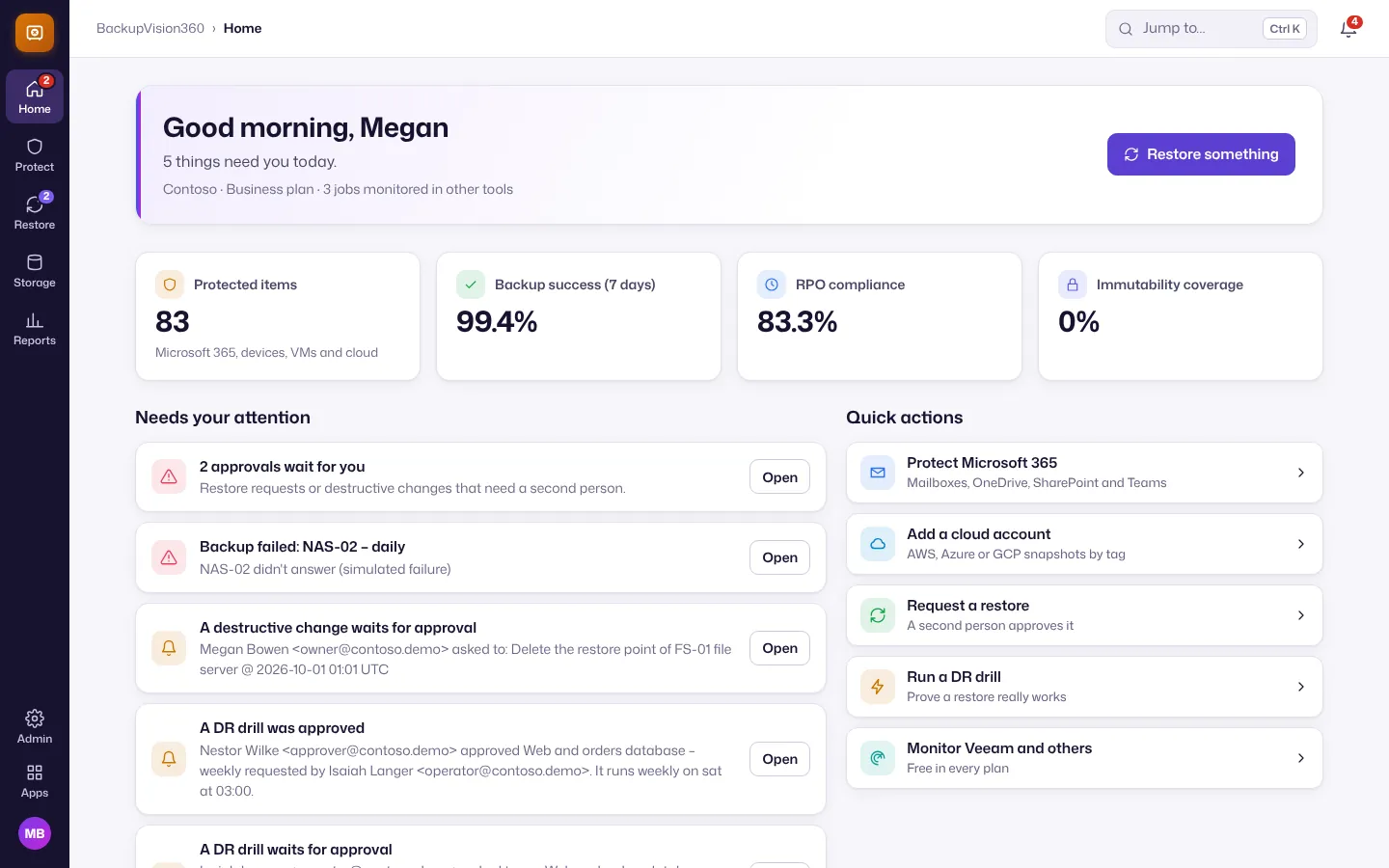
Home shows protected items, backup success over 7 days, RPO compliance and immutability coverage, plus what needs your attention (restores waiting for you, failed backups, changes waiting for approval).
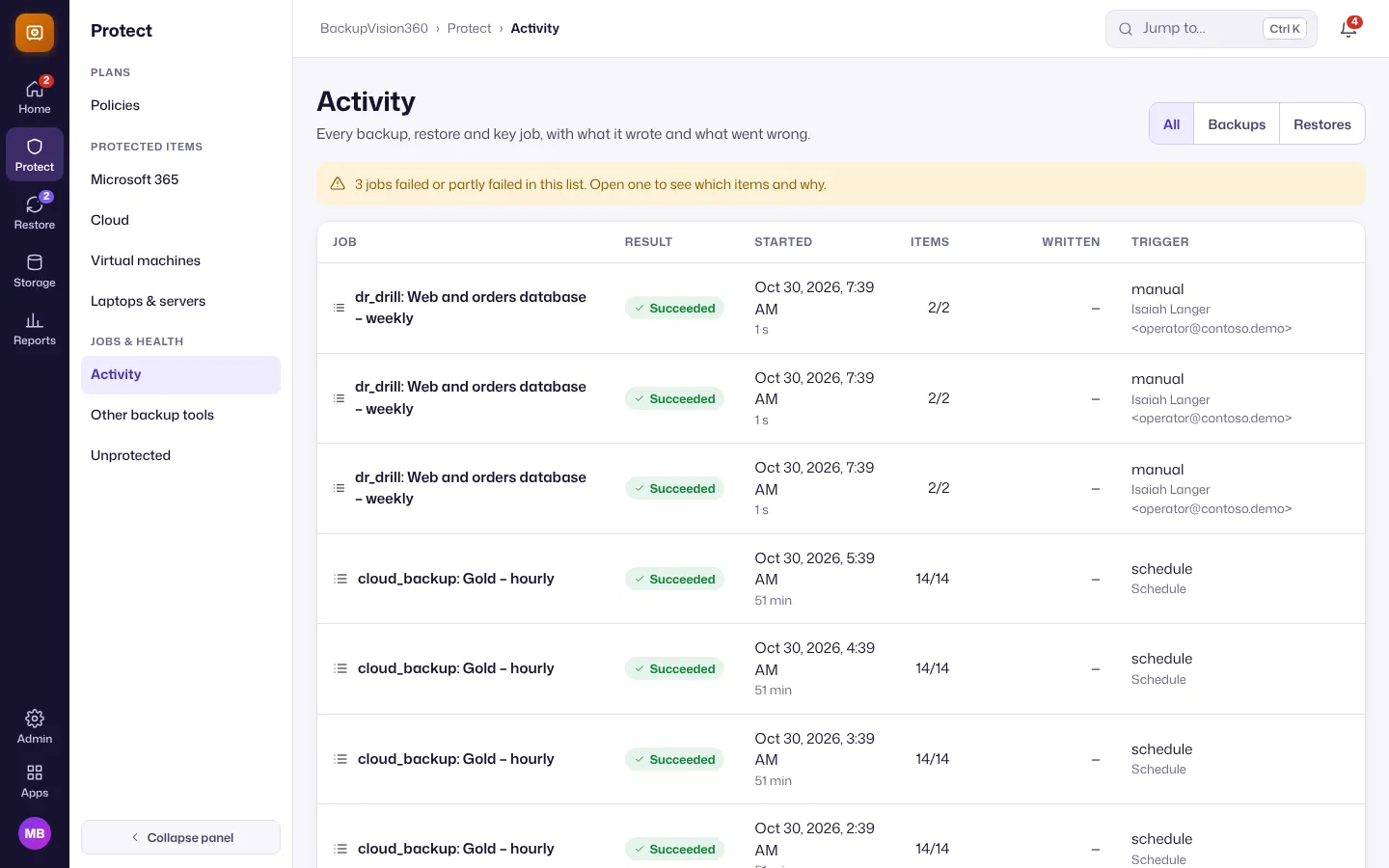
Protect → Activity lists every backup, restore and key job with its result, start time, items and what started it. A failed job opens to the reason.
Request a restore
-
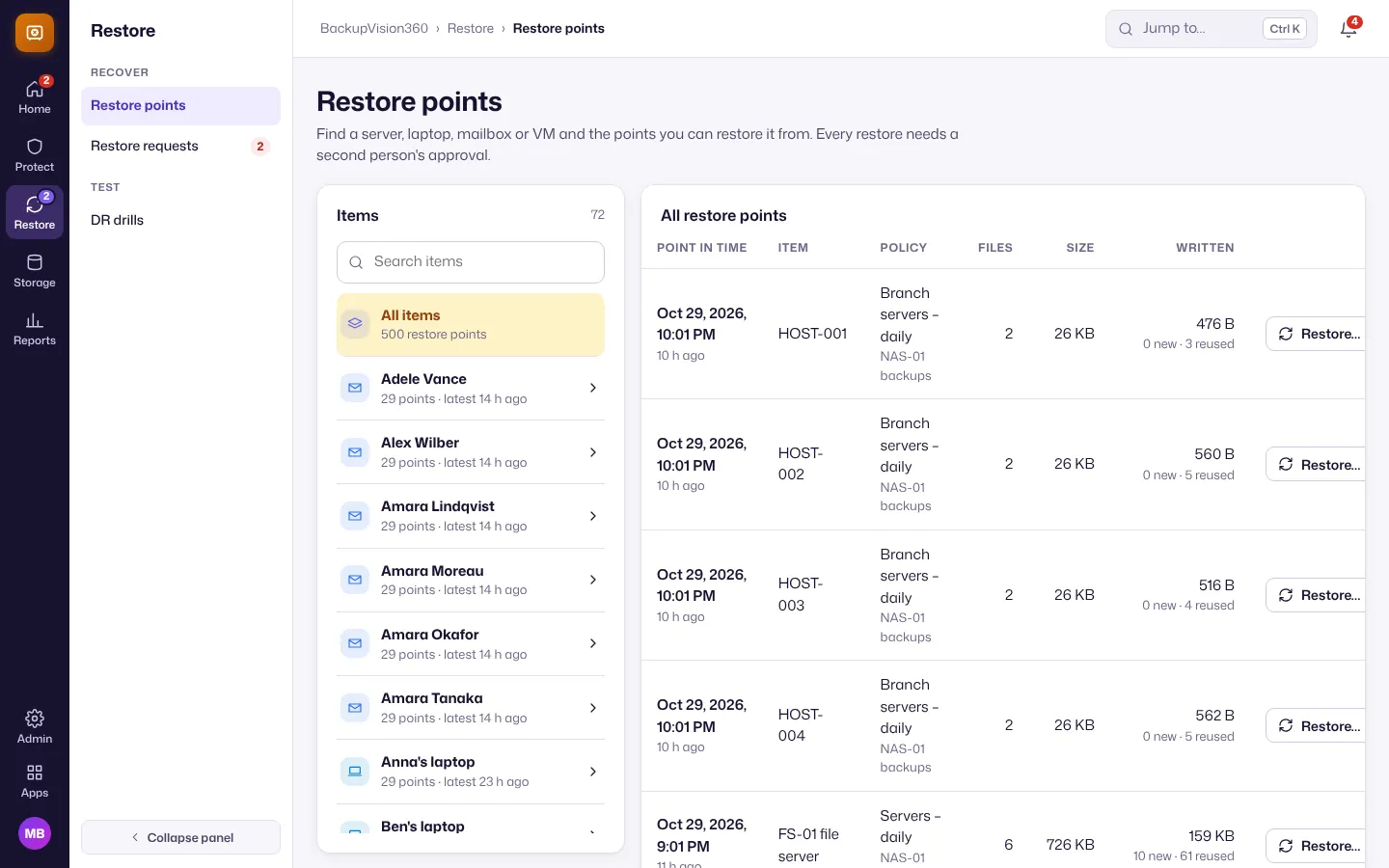
Open Restore → Restore points. Search for the person, mailbox, laptop or server under Items; its restore points are listed with the newest first.
-
Choose Restore… on the point you want.
-
Choose where it goes under Restore to:
- Verify only (dry run): checks everything can be restored, writes nothing.
- Download link: a ZIP you download; the link works for 24 hours.
- Export to a restore bucket: a ZIP written to another of your storage targets.
- Back to the original place: overwrites what’s there now; needs an approver with elevated rights.
-
Under What to restore, keep Everything or tick only some folders, and give a Reason (for example a ticket number).
-
Submit and confirm with your authenticator.
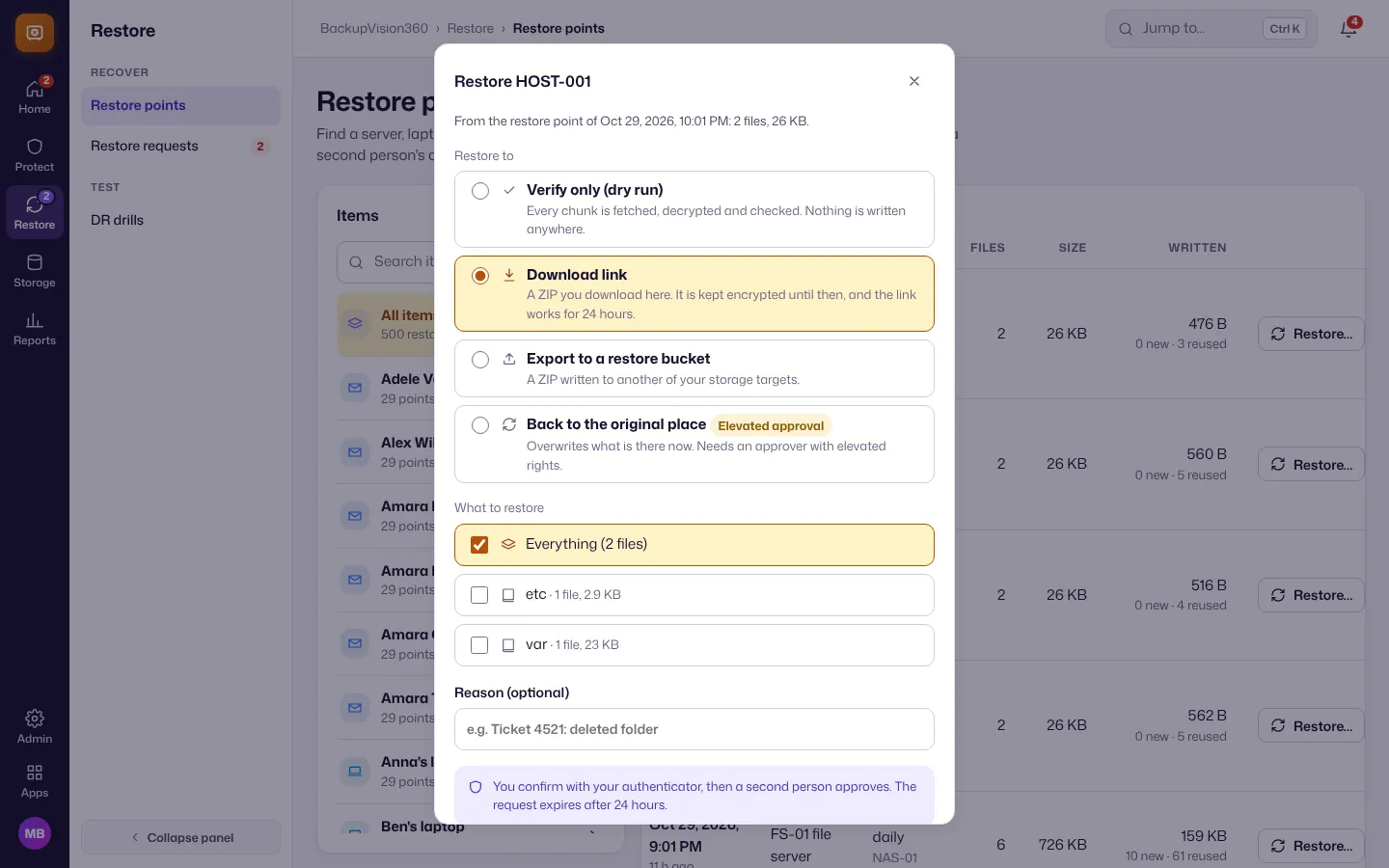
The request waits under Restore → Restore requests until a second person approves it. It expires after 24 hours if nobody does.
Approve a restore
People with the restore_approver role (or owner and admin) approve restores they didn’t ask for themselves.
- Open Restore → Restore requests. Waiting for you lists what needs your decision.
- Check what is being restored, where it goes, who asked and the Reason.
- Choose Approve and confirm with your authenticator, or Reject. The restore runs as soon as it’s approved, and the requester can follow it under Activity.
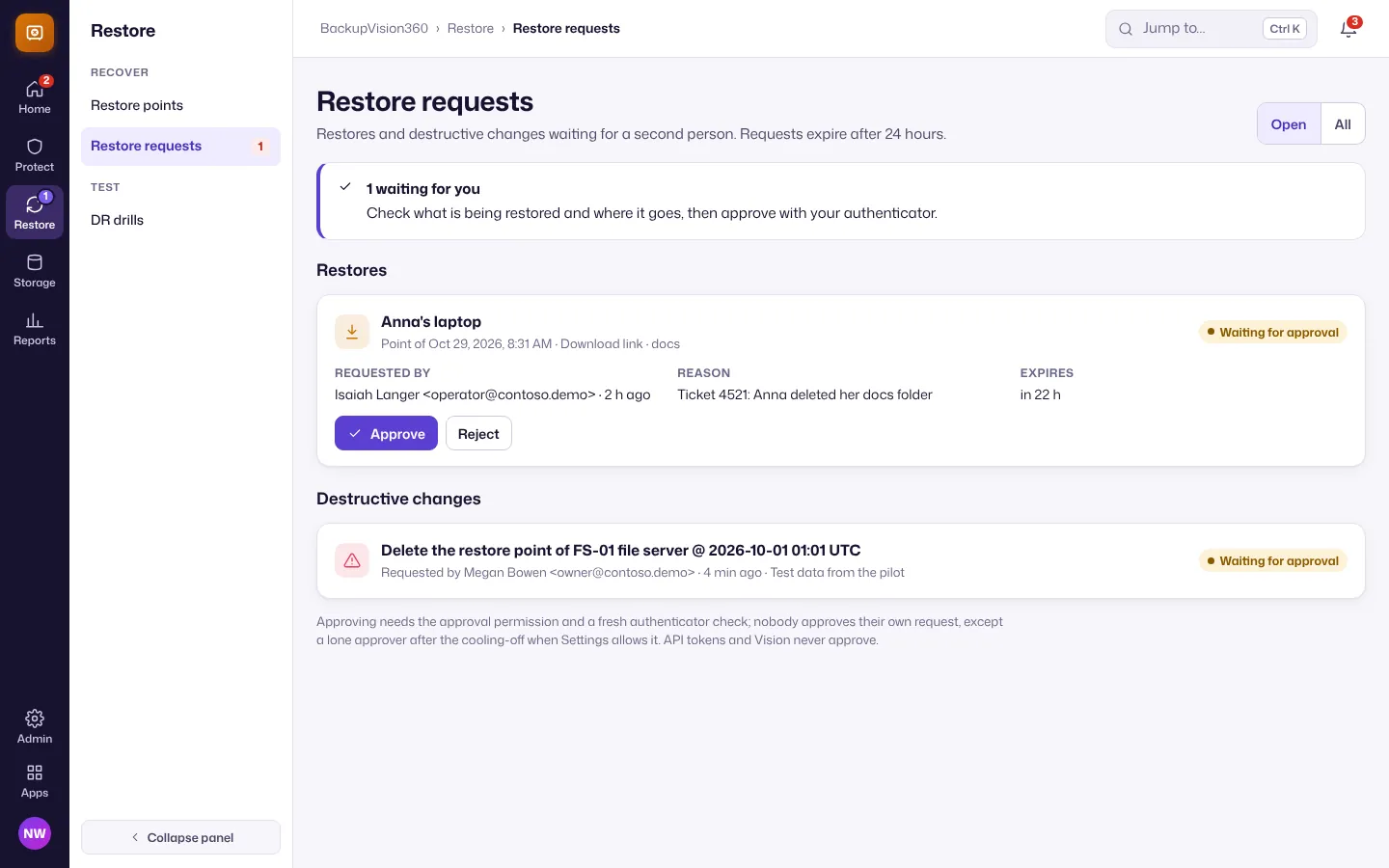
Destructive changes, such as deleting a restore point or shortening retention, wait for a second person in the same list (Approve change). More in Restores and approvals and Destructive change protection.
Read the reports
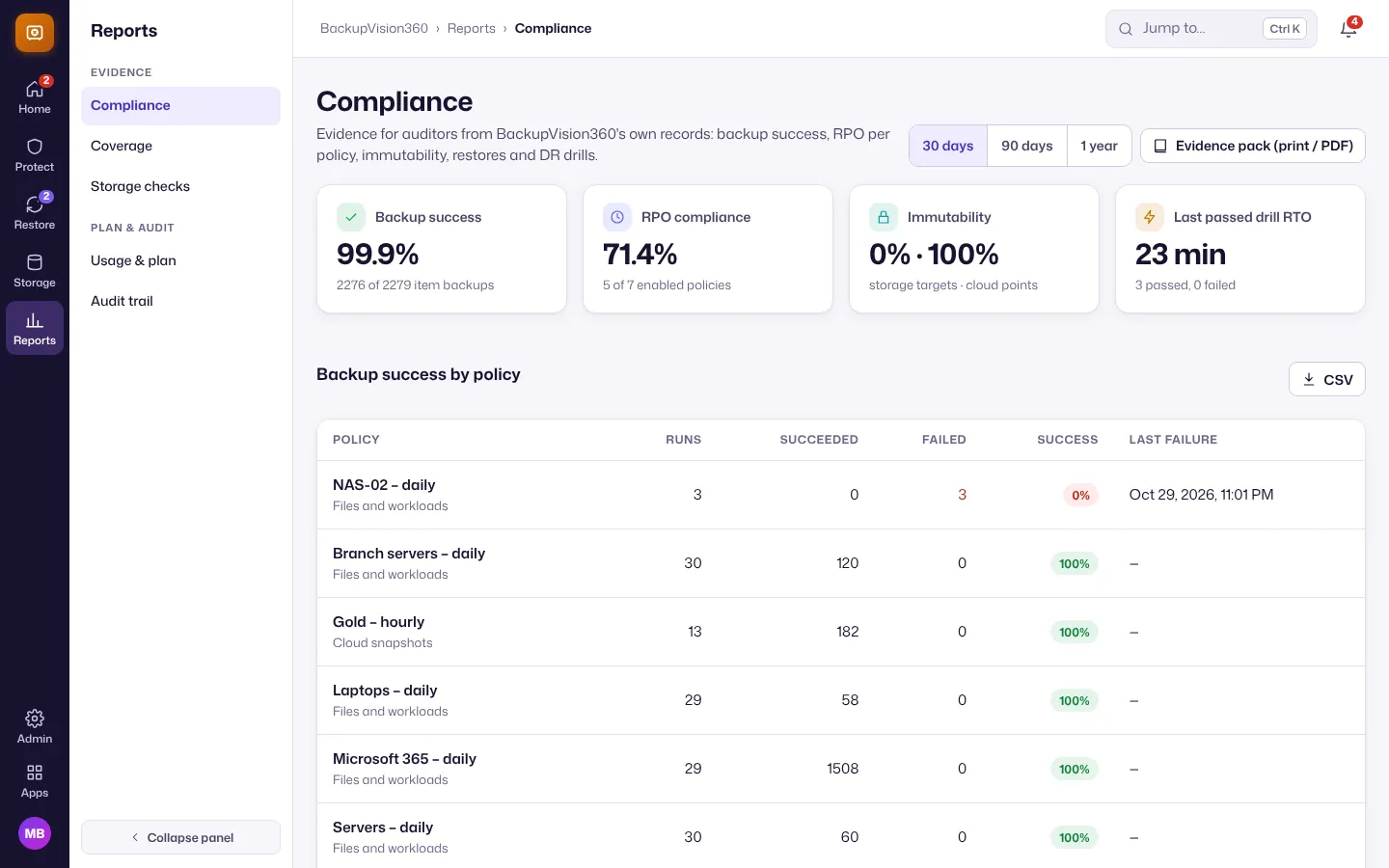
Open Reports → Compliance for evidence auditors ask for: backup success, RPO compliance, immutability, the last passed DR drill, and backup success by policy. Choose the period (30 days, 90 days, 1 year); Evidence pack (print / PDF) produces the document to hand over, and CSV exports the table.
Reports → Usage & plan shows what counts toward your plan.