Set up AgentVision360
The three Get started steps - connect your AI providers read-only, map spend to teams, and set a budget that warns you before you overspend.
Online version, always current: https://cloudvision360.com/docs/guides/set-up-agentvision360/
AgentVision360 shows what your organization spends on AI, who spends it and on what, across every provider. A new organization opens on a Get started card with three steps. You need the owner or admin role. Each step’s How to link opens its section of this guide.
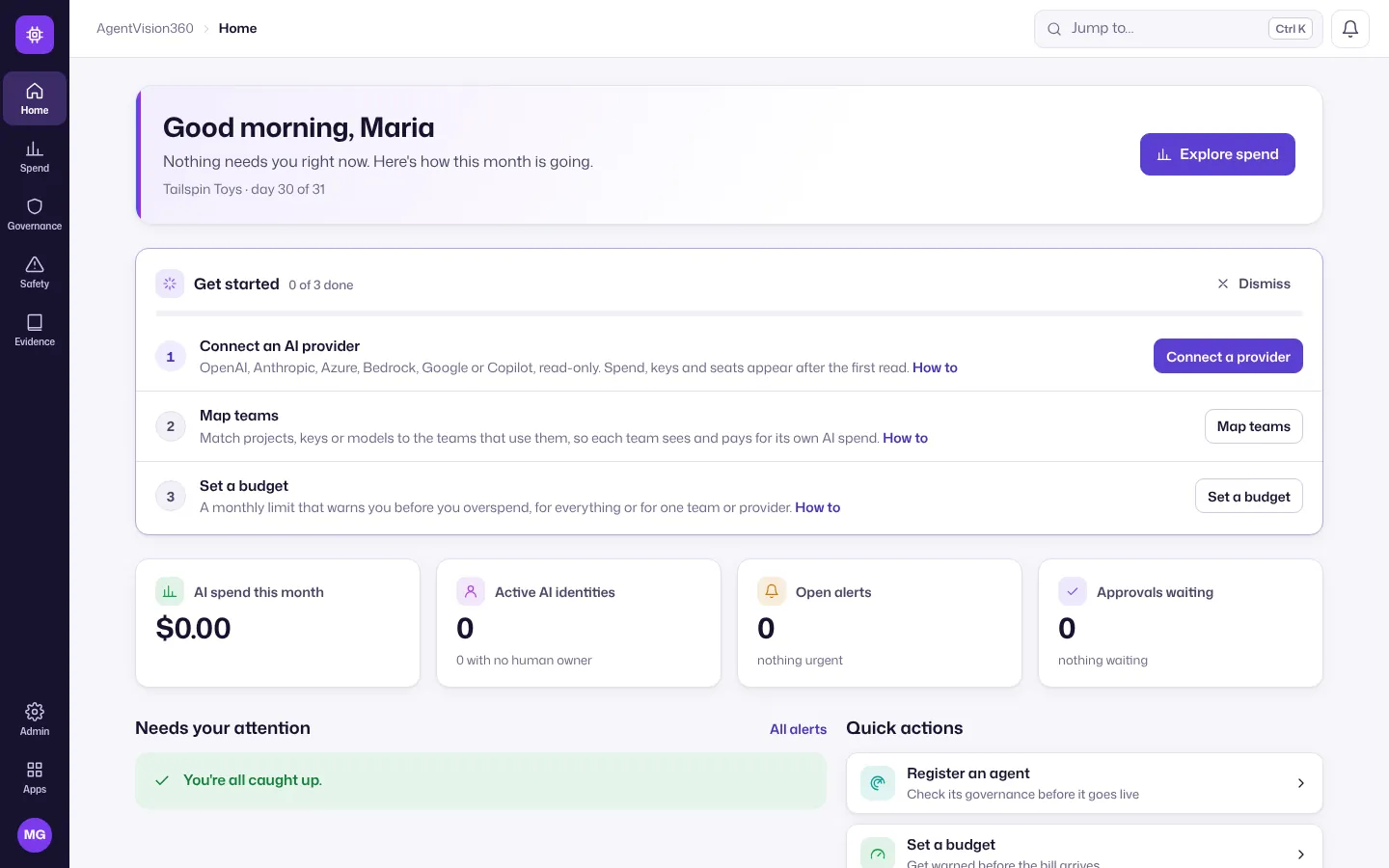
Connect an AI provider
-
On the Get started card choose Connect a provider (or Admin → Connections → Connect a provider).
-
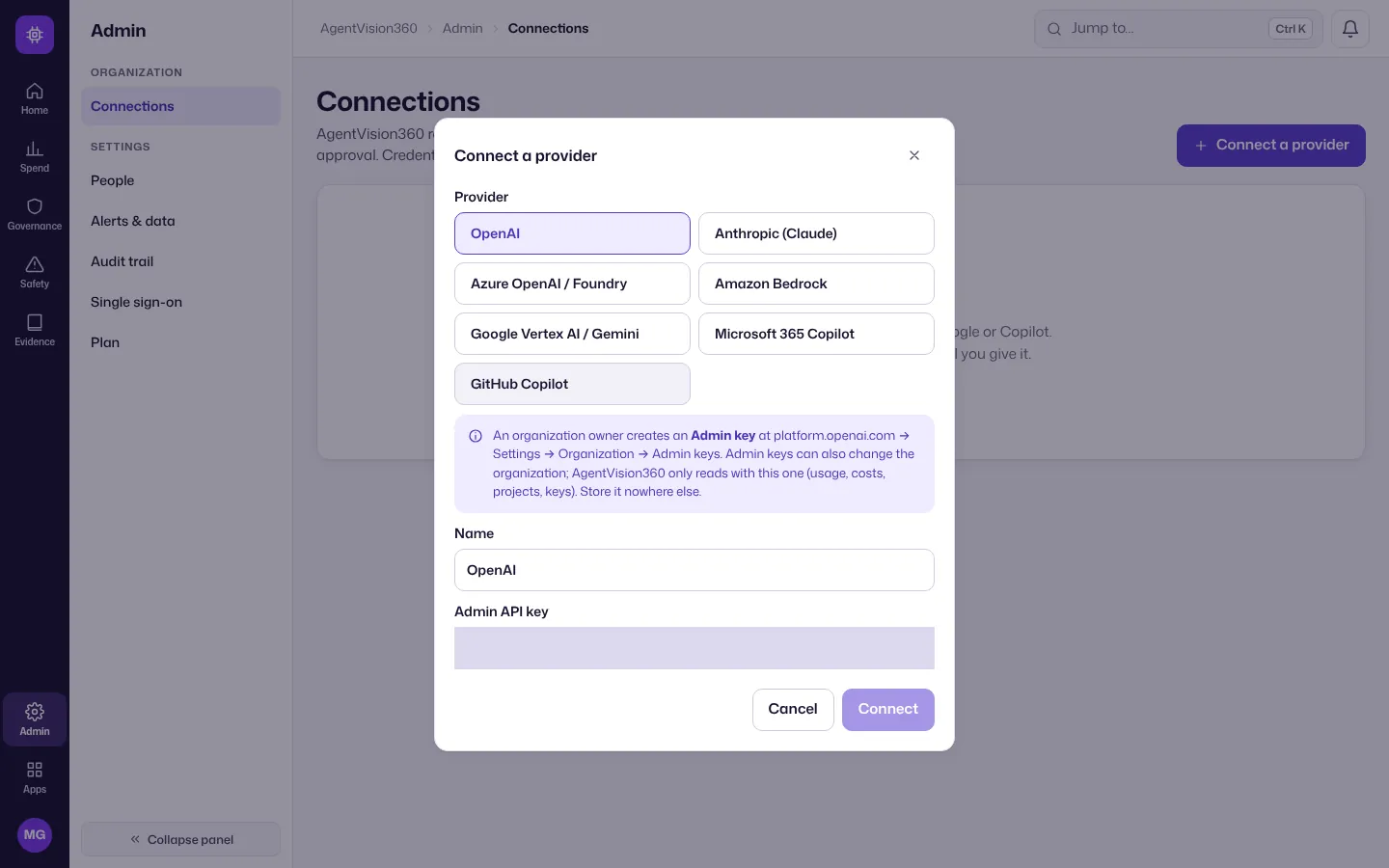
Pick the provider: OpenAI, Anthropic (Claude), Azure OpenAI / Foundry, Amazon Bedrock, Google Vertex AI / Gemini, Microsoft 365 Copilot or GitHub Copilot.
-
Enter what the dialog asks for: an admin or usage key for OpenAI and Anthropic, or a read-only role or app registration for the cloud providers. Credentials are encrypted and never shown again.
-
Choose Connect. The first read brings in up to 90 days of history, so spend, keys and seats appear within minutes.
Connect each provider you use. Exactly which role or key each one needs: Connect AI providers.
Map teams
Teams let each part of the business see and pay for its own AI use (chargeback).
-
Choose Map teams (or Spend → Teams & chargeback), then New team.
-
Enter the team’s Name and, optionally, an Owner who gets its alerts.
-
Under Spend that belongs to this team, add rules that match projects, workspaces, keys or models; use a
*at the end to match a prefix (for examplesupport-bot-*). Choose Save team.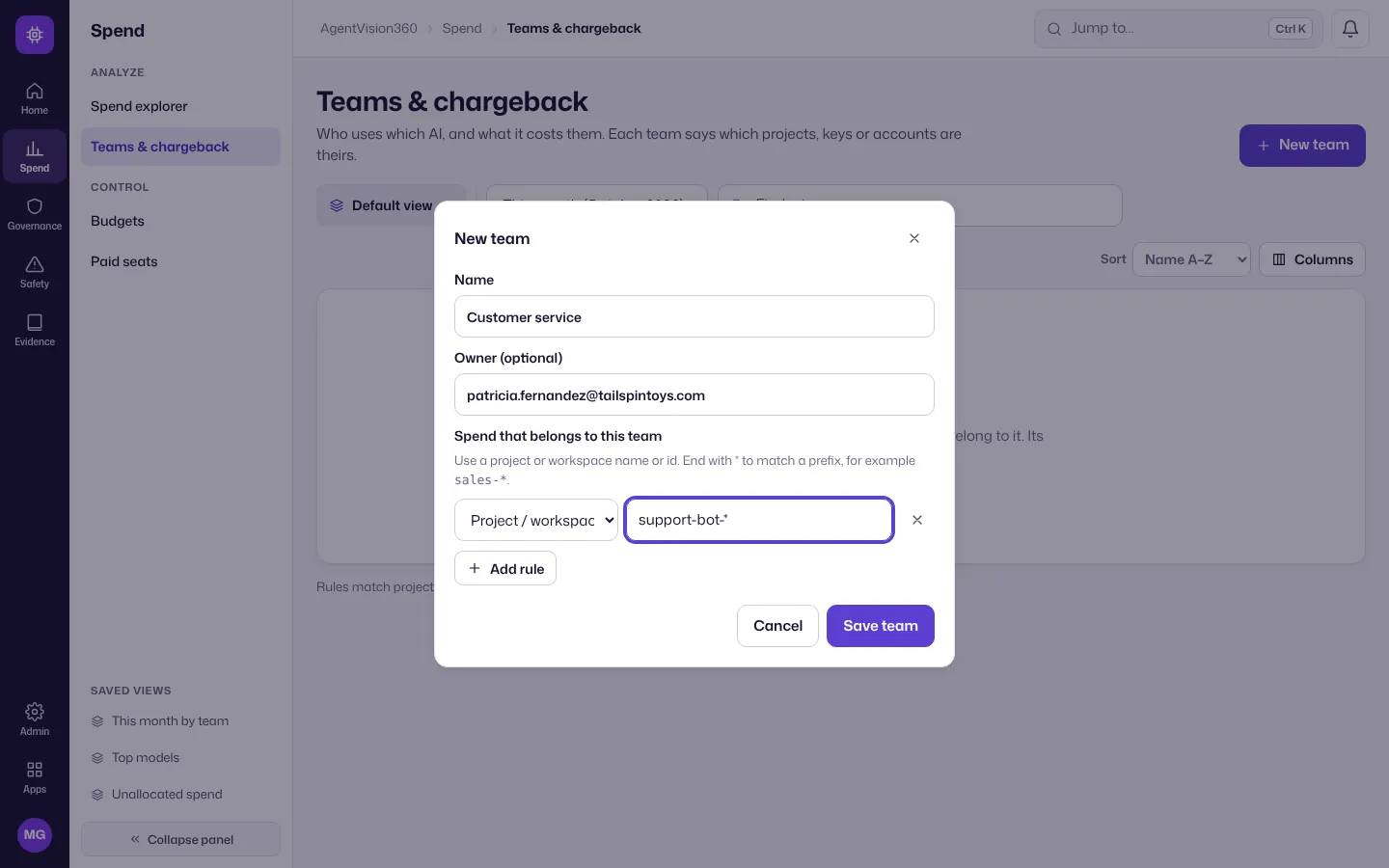
Spend that matches no team shows as Unallocated, so you can see what’s left to map. More in Budgets and chargeback.
Set a budget
-
Choose Set a budget (or Spend → Budgets → New budget).
-
Give it a Name, choose what it Covers (all AI spend, one team or one provider) and the Monthly limit (USD). Under Warnings and owner, choose when to warn and who.
-
Choose Save budget.
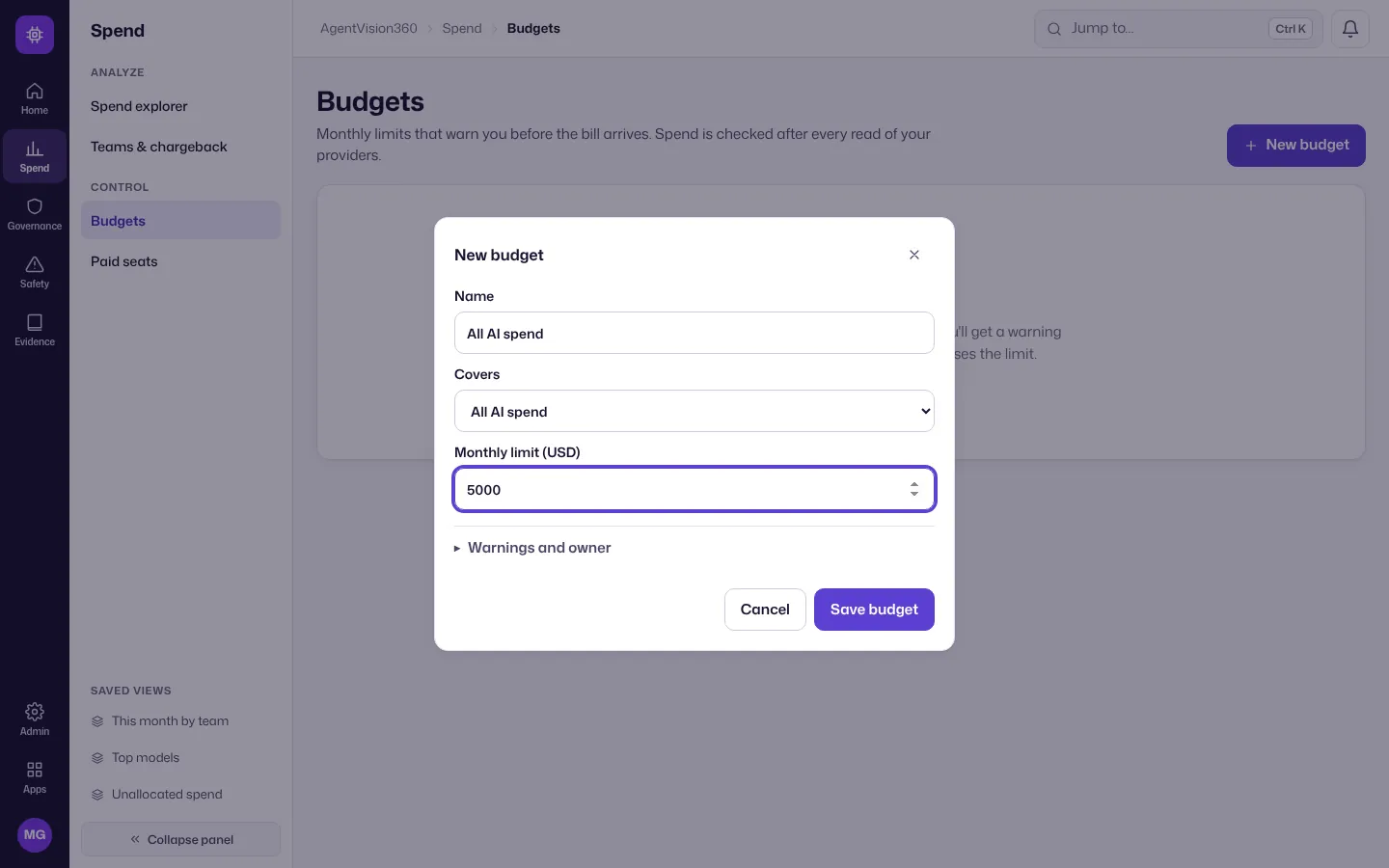
Spend is checked after every read of your providers, and you’re warned when the month is heading over the limit, not after. Day-to-day use is in Use AgentVision360.