Use CloudVision360
Everyday CloudVision360 - read Home, work findings from evidence to fix, follow the Fix first plan and download or schedule reports.
Online version, always current: https://cloudvision360.com/docs/guides/use-cloudvision360/
For security analysts, cloud engineers, FinOps and anyone who reads the results. What you can change depends on your role; everyone can read.
Start on Home
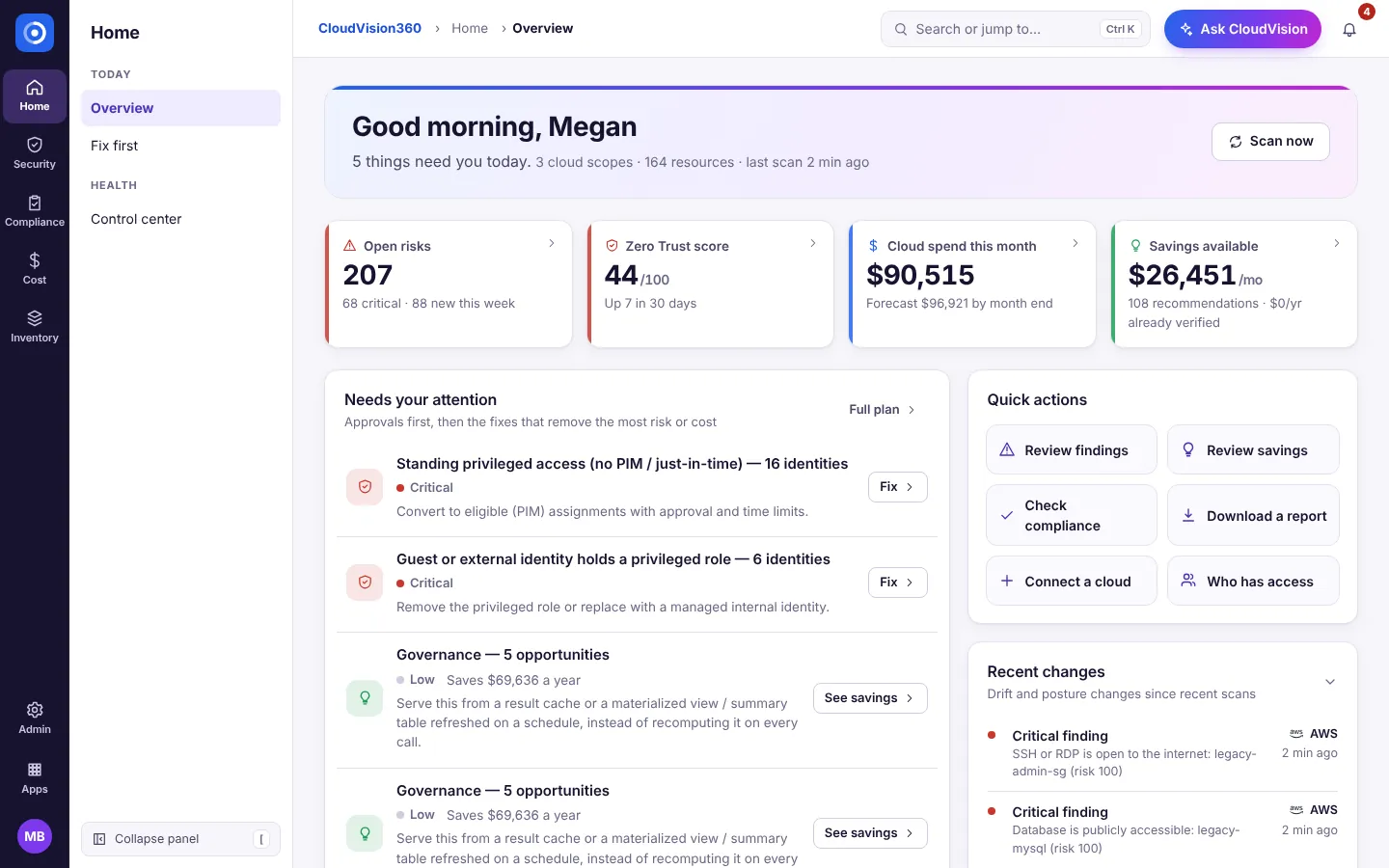
Home → Overview shows what needs you today: open risks, the Zero Trust score, cloud spend and forecast, savings available, the most urgent items, quick actions and recent changes. Every number opens the page behind it.
Read and work findings
-
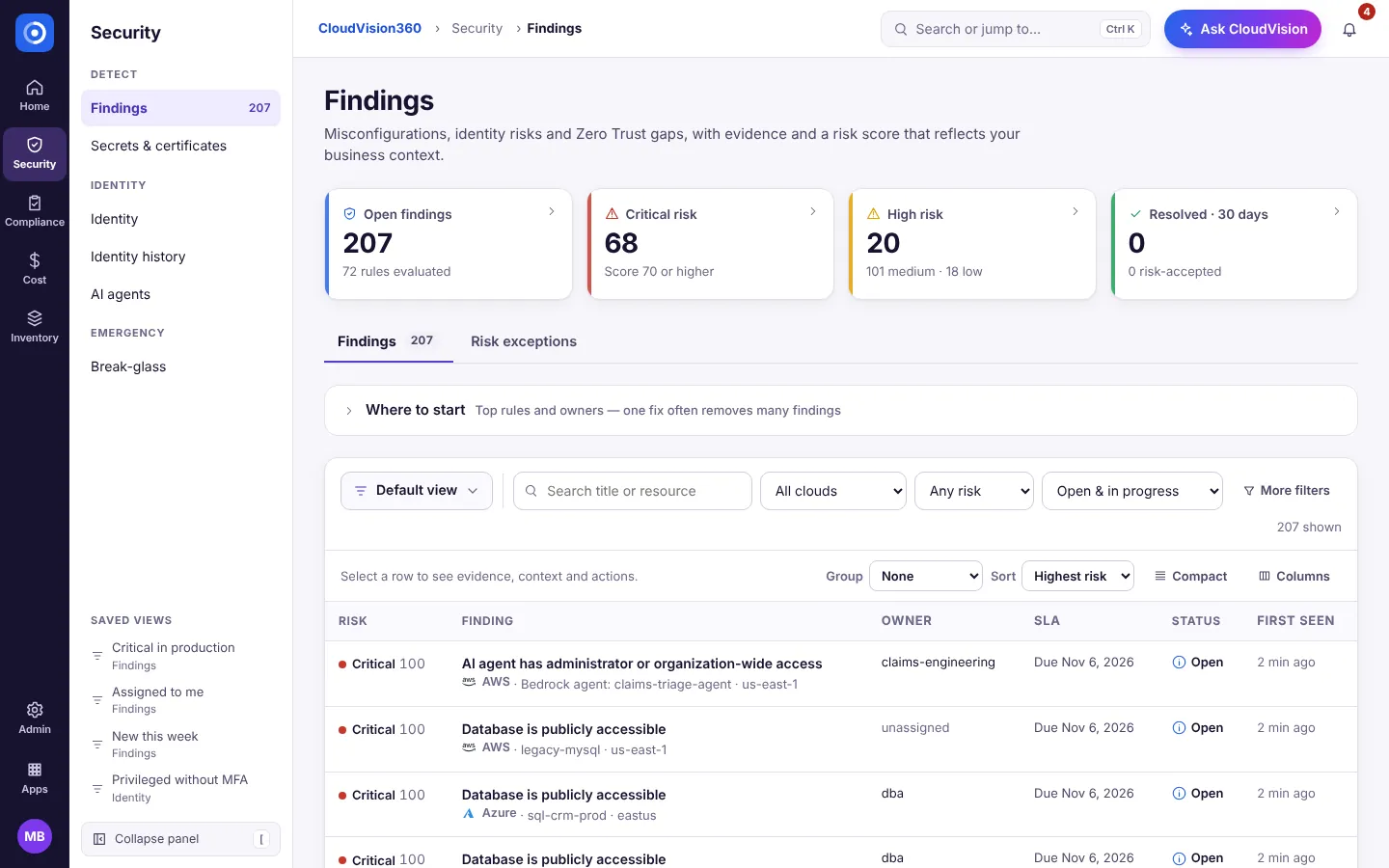
Open Security → Findings. The cards at the top count open findings by risk; select one to filter the list.
-
Narrow the list with the search box, cloud, risk and status filters, or a saved view in the section panel (Critical in production, Assigned to me, New this week). Group and Sort change the layout; Default view saves your own.
-
Select a row. The panel explains the finding in plain words: what’s wrong, why it matters, what to do, and the Evidence behind it, with the frameworks it affects.
-
Act on it: Start work, Assign to an owner, mark it a False positive, or Request exception when the risk is accepted (an approver decides).
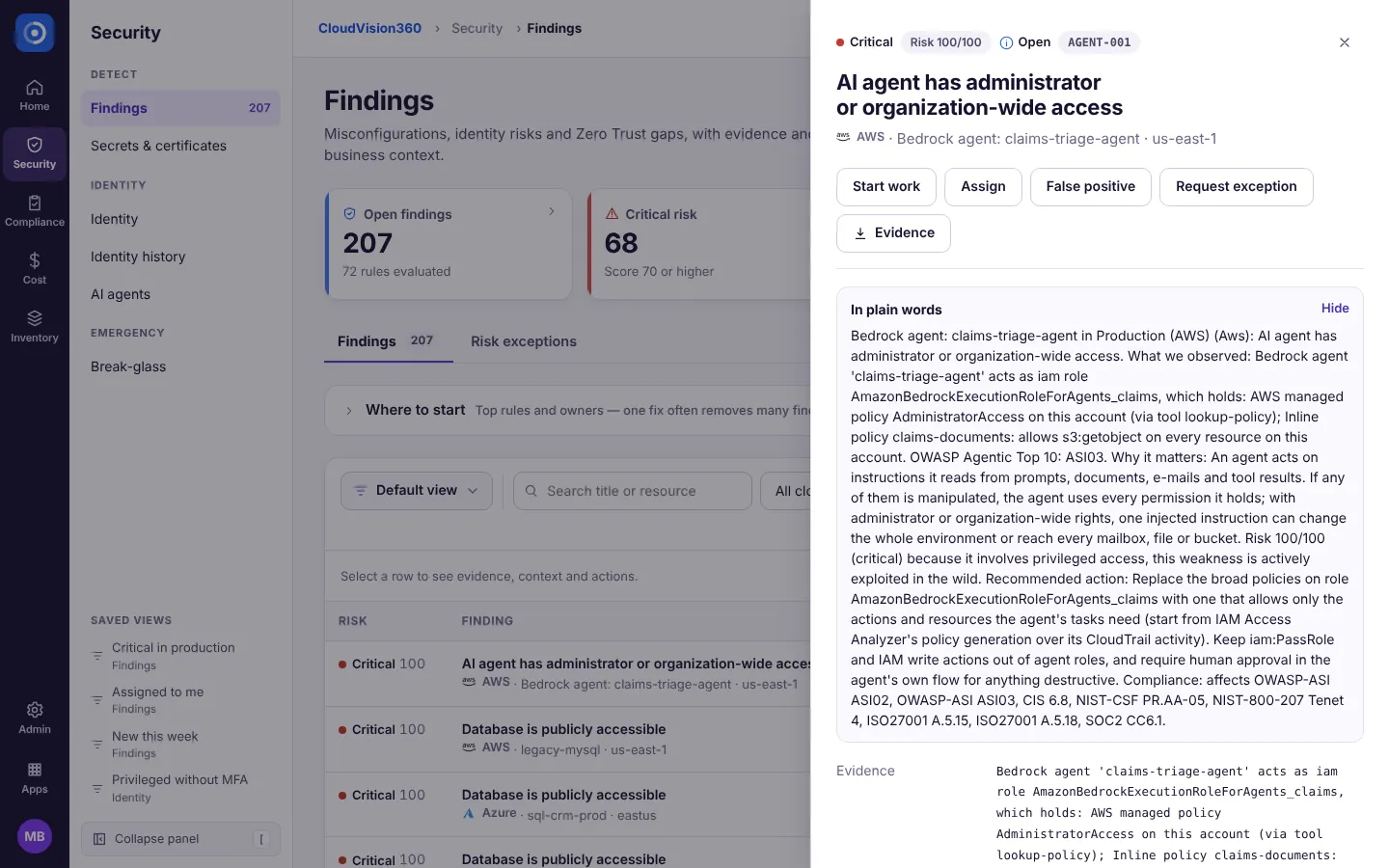
A finding closes on its own when the next scan no longer sees the problem. More in Security findings and Risk exceptions.
Follow Fix first
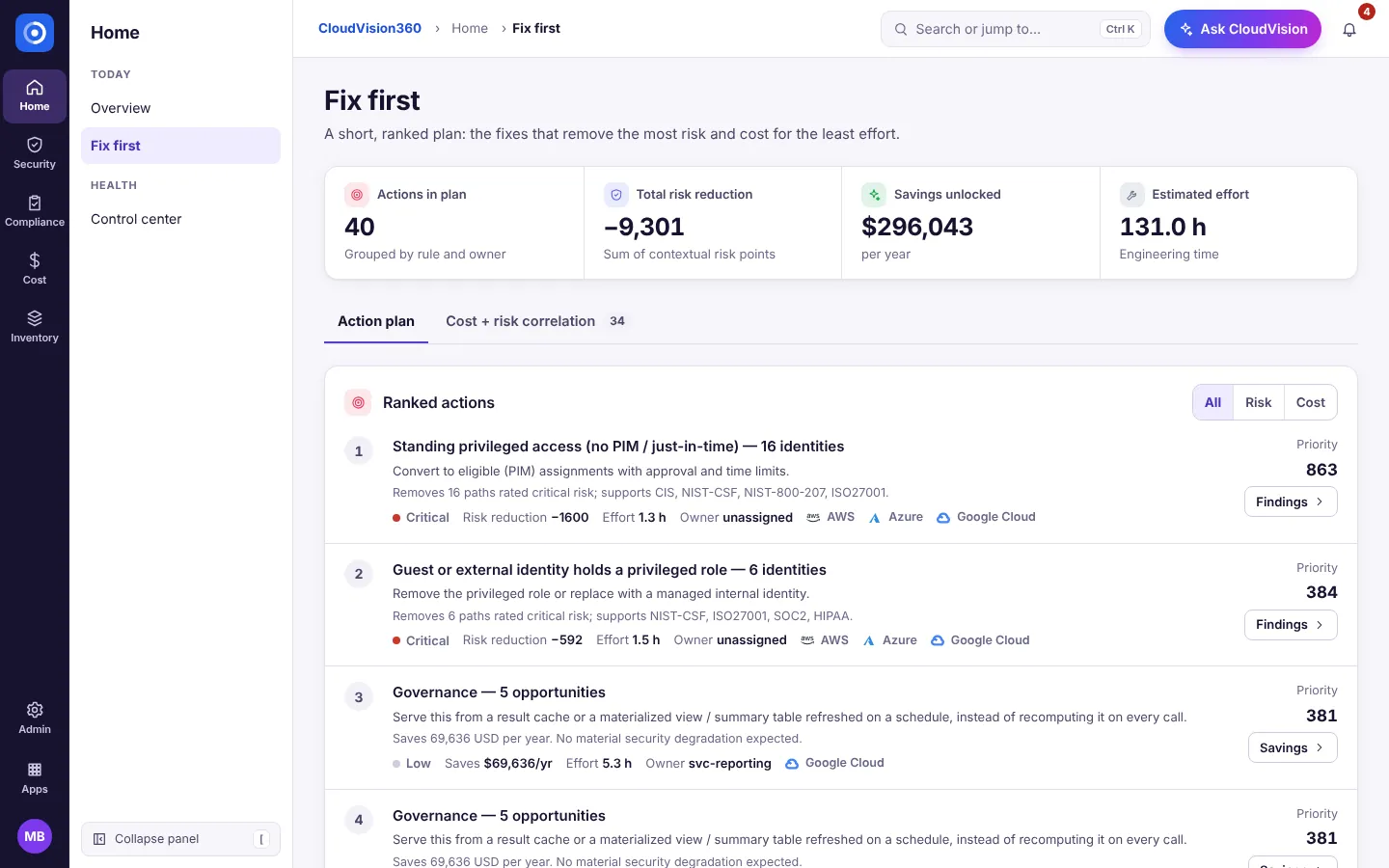
Home → Fix first ranks work by risk and cost together, so the first lines are the best use of your time. The Cost + risk correlation tab shows resources that are both risky and expensive. Each action opens the findings or savings behind it.
Download or schedule a report
-
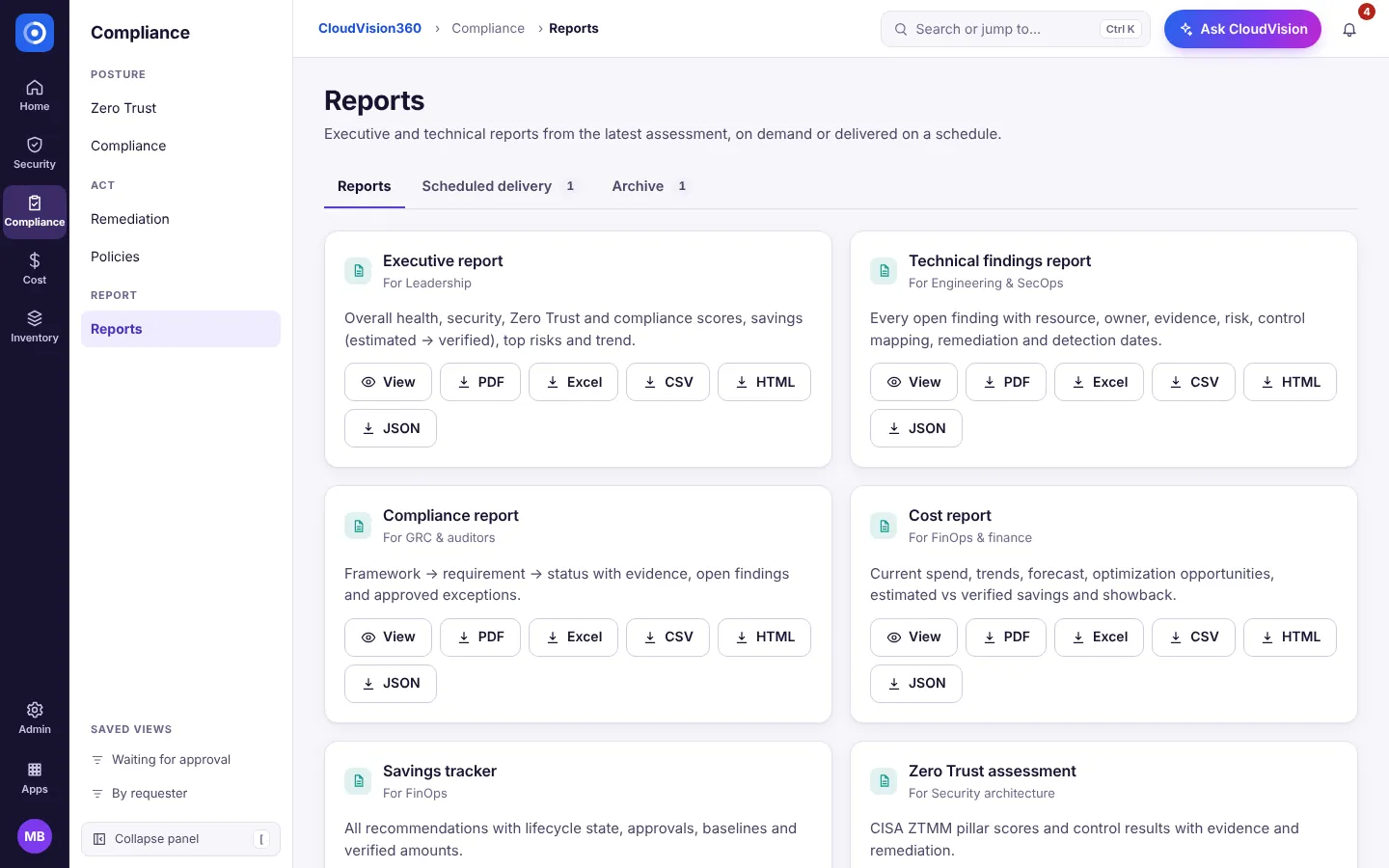
Open Compliance → Reports.
-
Pick a report: Executive, Technical findings, Compliance, Cost, Savings tracker, Zero Trust assessment, Identity governance, Verified outcomes or Asset inventory.
-
Choose View to read it in the browser, or download it as PDF, Excel, CSV, HTML or JSON.
-
To send a report by email on a schedule, use the Scheduled delivery tab. Earlier reports are kept under Archive.
Which reports your plan includes is on Reports.