Microsoft 365 backup
Back up mailboxes, OneDrive and SharePoint sites with incremental runs, after an administrator proves the tenant is yours.
Online version, always current: https://cloudvision360.com/docs/backupvision360/microsoft-365/
BackupVision360 copies Microsoft 365 data off the tenant: each person’s mailbox and OneDrive, shared mailboxes and SharePoint sites (every document library). It reads through Microsoft Graph with read-only application permissions and writes encrypted restore points to your storage target.
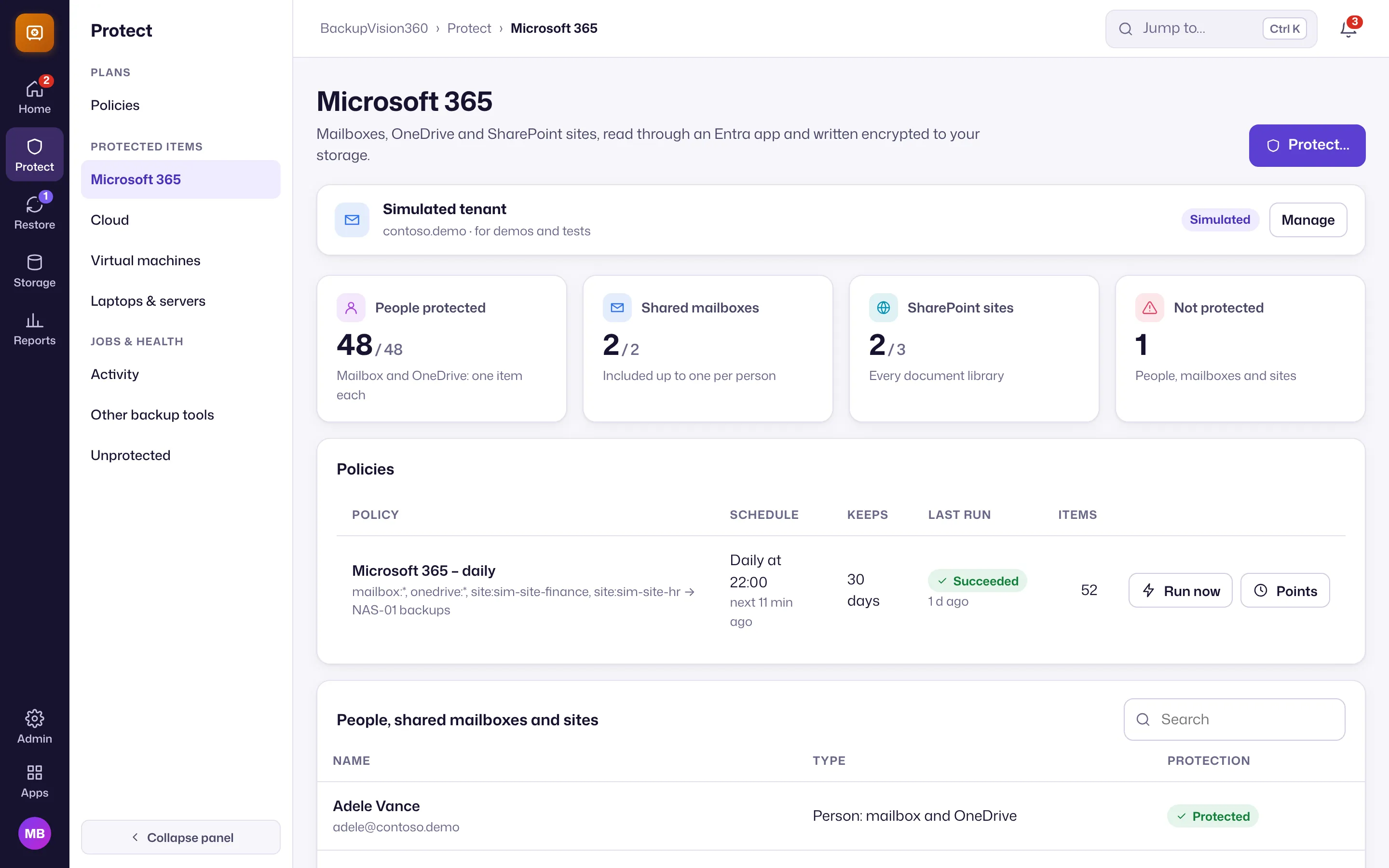
Connect your tenant
Open Admin → Connections → Microsoft 365. You can use the BackupVision360 app registration, or your own (client secret or certificate). The app needs the Graph application permissions User.Read.All, Mail.Read, Files.Read.All and Sites.Read.All: read only.
Connecting is a two-step proof, so nobody can attach a tenant that isn’t theirs:
- Admin consent. An administrator grants the permissions in Microsoft Entra.
- Administrator sign-in. A Global Administrator or Privileged Role Administrator signs in once more, and confirms “Connect <tenant> to <organization>”. BackupVision360 checks the sign-in itself (tenant, app, and the administrator’s role) before the connection is granted. Only those two roles can grant tenant-wide consent to Graph application permissions, so only they count as proof.
A tenant can be connected to one organization at a time on the shared app. Who proved it, and their role, are recorded in the audit trail.
What counts as an item
| Item | Counts as |
|---|---|
| A person: mailbox and OneDrive together | 1 Microsoft 365 user |
| A shared mailbox, a SharePoint site or a Team | Free up to one per protected person; beyond that each counts as a user |
Protect people and sites
Open Protect → Microsoft 365 → Protect…, choose everyone or chosen people, shared mailboxes and sites, a storage target, a schedule and the retention. The Free plan backs up daily and keeps 30 days; paid plans can run hourly and keep restore points as long as you like.
Incremental runs. Every restore point is a complete picture, but each run only reads what Microsoft Graph reports as added or changed since the last one. If a change history expires, the next run reads everything once.
Restore
Find the person or site under Restore → Restore points, pick a point in time and request a restore. Restore back into Microsoft 365 or as files:
- Back into Microsoft 365: mail into a new Restored items folder in the mailbox, files into a Restored folder in the original OneDrive or site. This uses a separate restore app with write permissions, connected with the same administrator proof as the backup app. Overwriting files in place, or restoring into another person’s mailbox, needs elevated approval. A restore never deletes anything.
- Download: a sealed ZIP link for the requester and the approver, valid for 24 hours.
- Export: a ZIP written to another storage target (a “restore bucket”).
- Dry run: verify that the point can be restored, without writing anything.
Every restore waits for a second person: see restores and four-eyes approvals.
Restoring back into Microsoft 365 is new in early access and is being verified in early customers’ tenants.